Document Automation
AI-powered templating. Admins configure an agent that builds repeatable documents from their own slide library. Positioned commercially as custom document agents.
Context
Why a universal AI agent was not enough
Templafy already had a document agent that could generate brand compliant presentations from a prompt. There was no admin setup or configuration. The only interface was a prompt field in the end user experience.
The agent handled styling well, but the content came only from the prompt. It did not use existing company materials. If someone needed a specific slide from the company library, the agent would not retrieve it. It would generate something new using the right layout, but not the actual source content.
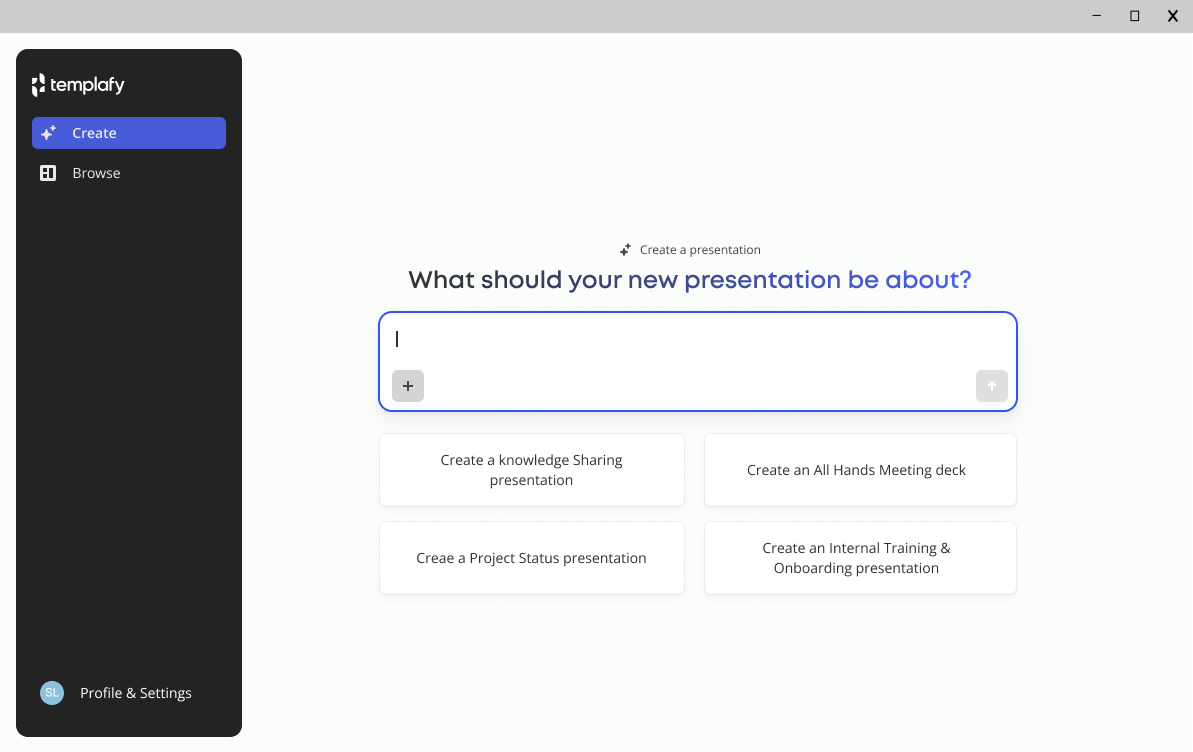
The universal agent's only interface: a prompt box in the end-user experience.
For generic presentations, that worked. For specific and repeatable document types like proposals, sales plays and executive reviews, it did not. Customers needed agents that behaved the same way every time, using slides their teams had already approved.
This called for a different kind of product. Admins configure custom document agents once, and employees use them after.
Starting point
The agent already had a menu entry in the admin center and a working list view for published agents.
Creating a new agent opened a fixed two step wizard. It started with name and description, then ended in a full screen modal that tried to show details, questions and a section outline in one view.
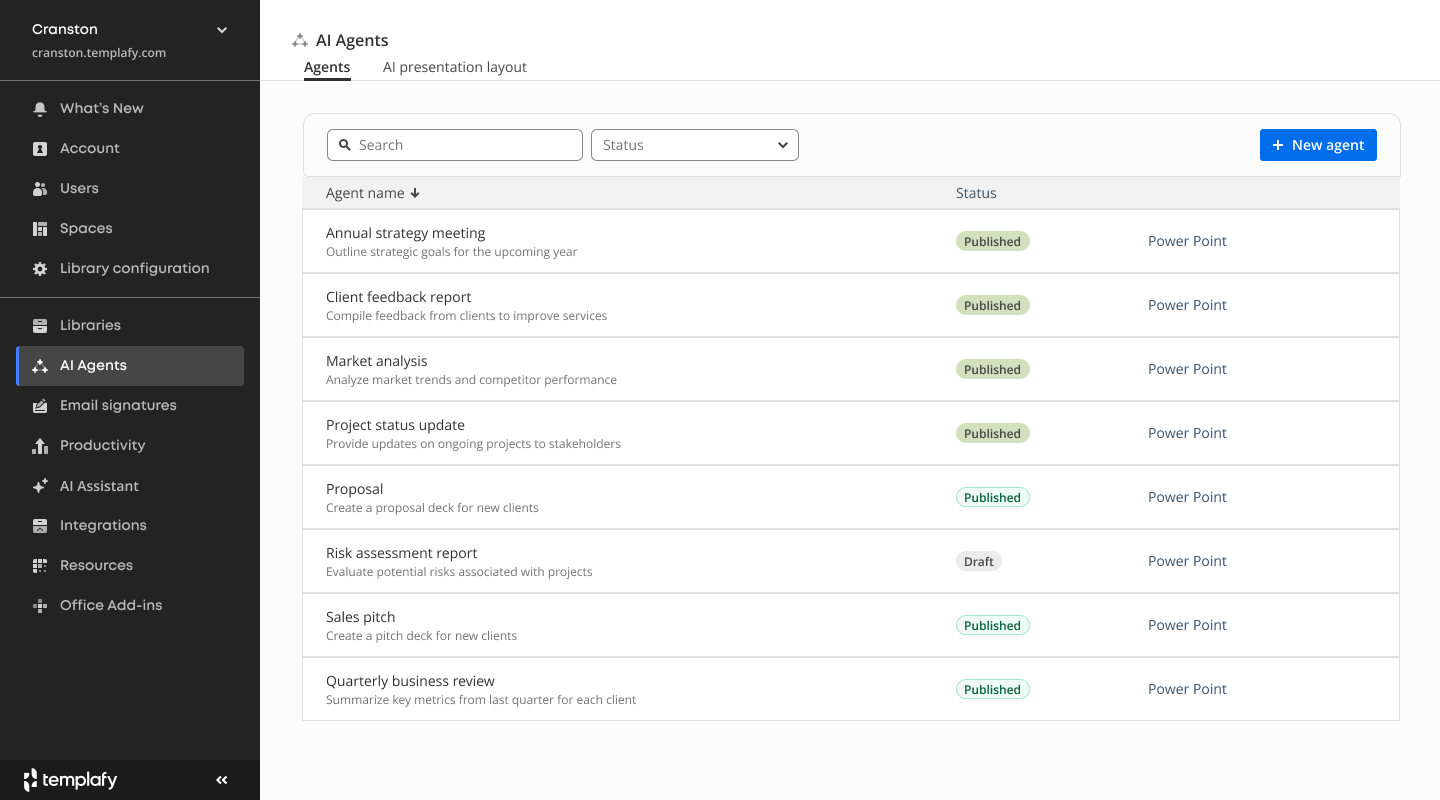
Admin center, old version. Each published agent sits in a flat list with no grouping, status controls, or signals about configuration scope.
Show the old creation flow
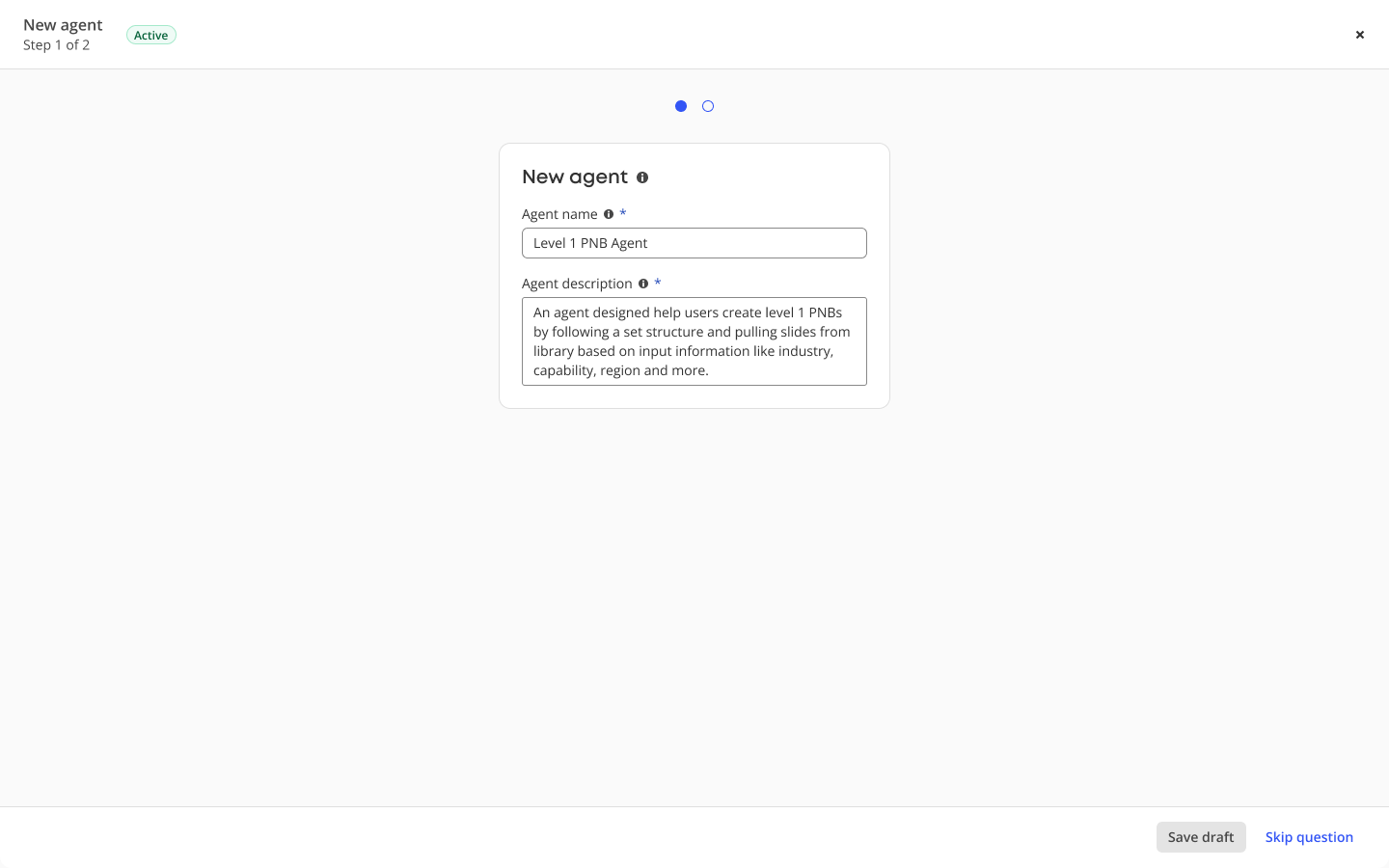
Old creation flow, step 1 of 2. A rigid modal that locked admins into a linear path.
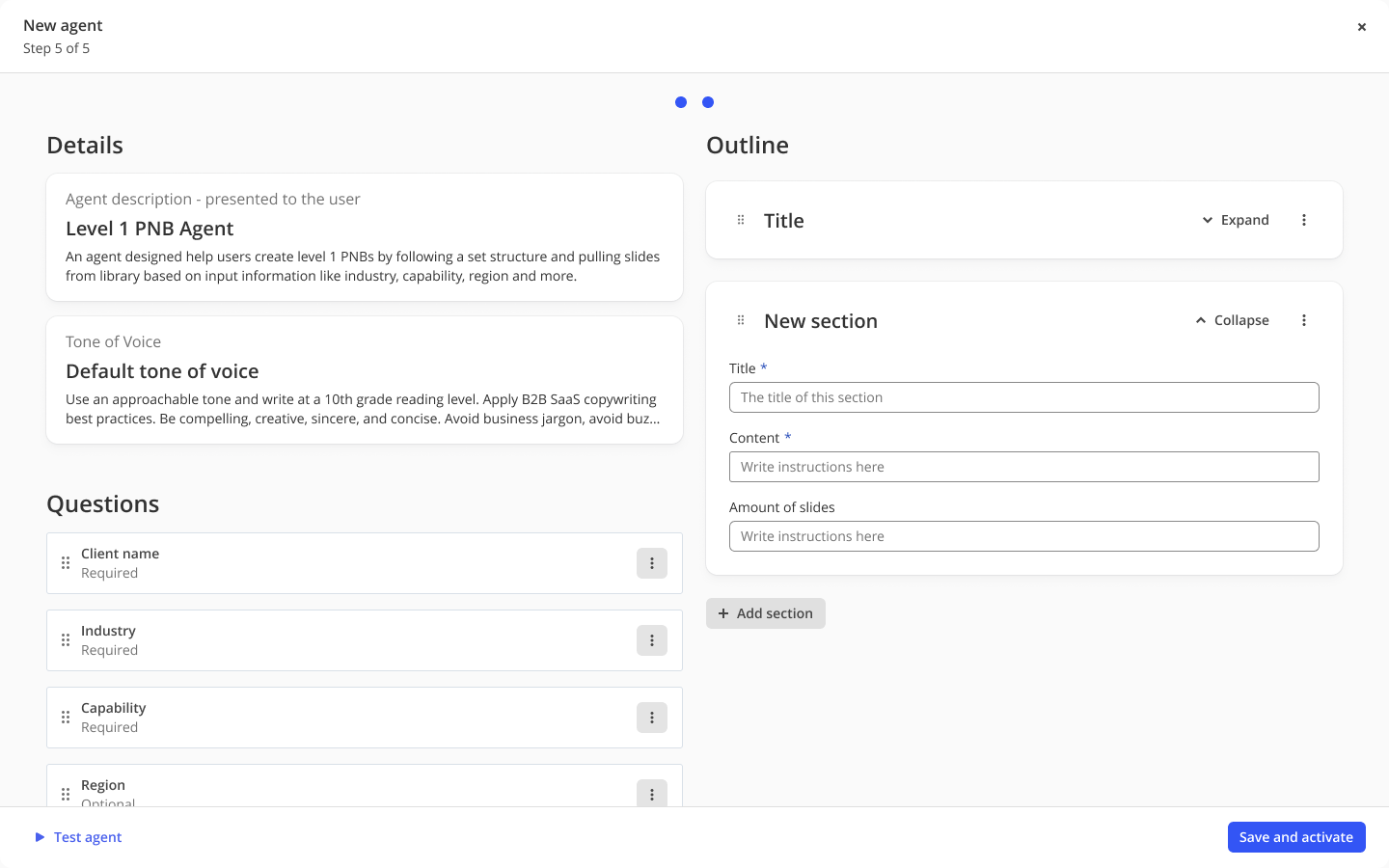
Step 2 of 2. A full-screen modal squeezing details, questions, and an outline of sections into one view. The shape did not scale once customers needed deeper configuration per section.
Building on what was already in place
Templafy already had centrally managed AI assistant settings and knowledge source configuration. These could be reused in custom document agents.
Layout guide was already in development. It reused full presentations and individual slides from the library during document creation. Custom document agents used the same pool of approved content.
The configuration model needed to align with these existing systems.
The work focused on extending current admin setup patterns and applying them to each document type.
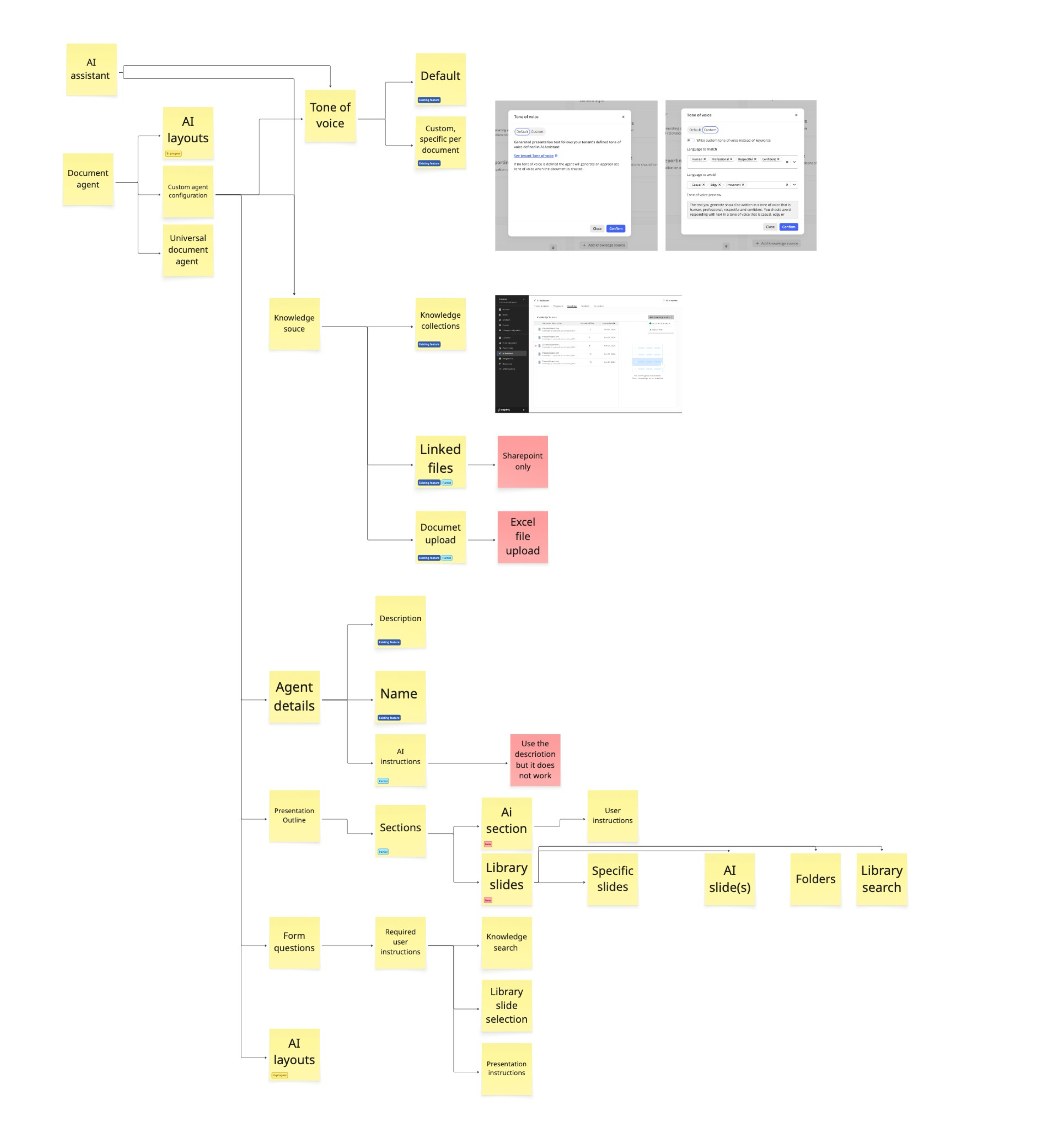
Feature map: existing Templafy AI capabilities (central AI assistant, knowledge source configuration) and how they feed into custom document agents.
The focus
The shift was from generating slides to assembling them.
Admins pointed the agent to approved slides in the content library so it could reuse them during generation.
Employees no longer had to find and place slides when creating decks, and instead focused on editing a version that was already close to correct.
Two sides of the same product
Profile 01
The admin
- Usually a brand, marketing, or content operations lead. 2 to 3 active admins per customer org
- Owns the company's style and brand guidelines, and the slide library structure
- Collects the content from subject matter experts (sales, legal, service leads) and translates it into reusable slides and document structures
- Configures the agent once per document type (e.g. proposals)
- Needs: an interface that speaks their language, not a technical settings panel
Profile 02
The employee generating the document
- Anyone making a proposal, deck, or sales play
- Cares about speed and a usable first draft
- Answers a few targeted questions, gets a rich output
- Needs: low friction, a result specific enough to start from
Research
The service blueprint already existed
Five enterprise customers joined a private preview to co-develop the feature. Monthly task-driven sessions ran with their subject matter experts, the people who build these documents. I led the design portions: presenting the solution and capabilities, and running prototype and design feedback with admins.
A pattern surfaced early. No one started from scratch. They opened a service blueprint: a repeatable document listing what sections belonged in the proposal, which slides filled each section, and what the finished output should look like. Following the blueprint and dragging slides from the library produced 80% of the proposal before a word was written.
The agent did not need to reinvent how these documents got made. It needed to follow the blueprint customers already had.
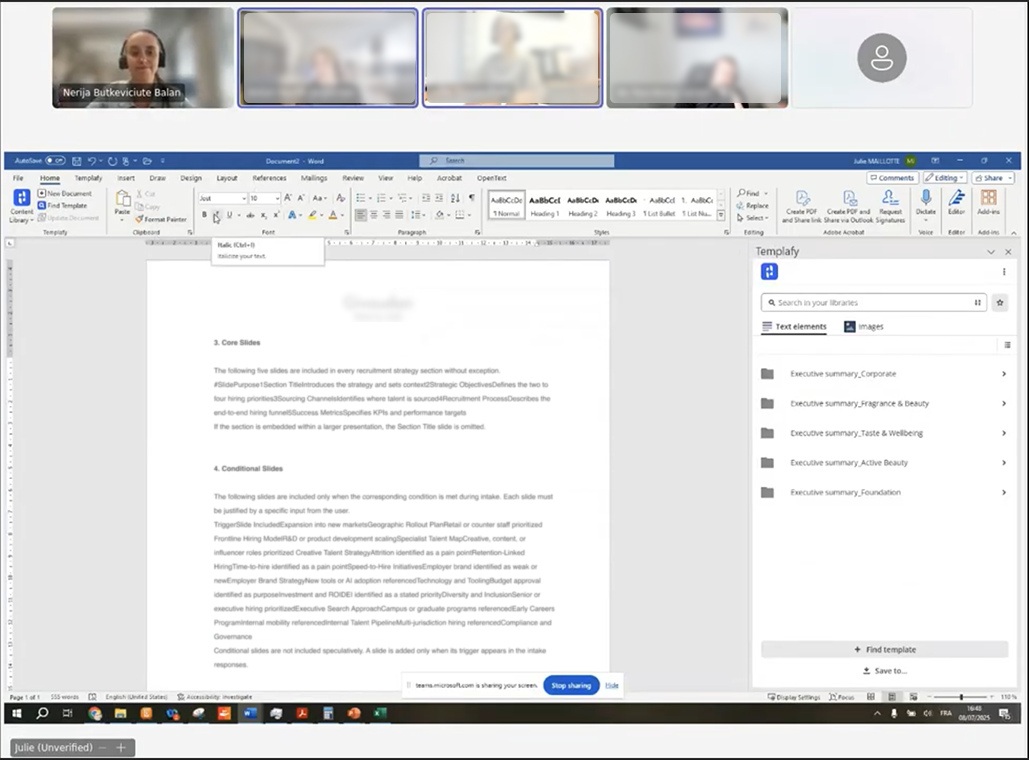
A customer's service blueprint, shared in session. Sections, slide-level rules, and the conditions for inclusion, all written down long before the agent existed.
We want to automate this. Reuse slides from the library and assemble the deck. We see AI as a low risk way to support level 1 proposals, or PNB's.
Admin, private-preview customer session
Directions
Two directions, one shared insight
I picked two approaches to test. Chat, because the industry was moving towards conversational interfaces and our CPO was advocating for one. A panel with manual setup, as the contrast. Testing both in the same round surfaced which parts of each worked, and informed what features the product needed.
Both pointed at the same thing: admins look at a document by its structure first. Configuration comes after.
Right-side panel
A card menu for top-level setup, sections in the centre, and a right-side panel for slide-by-slide configuration.
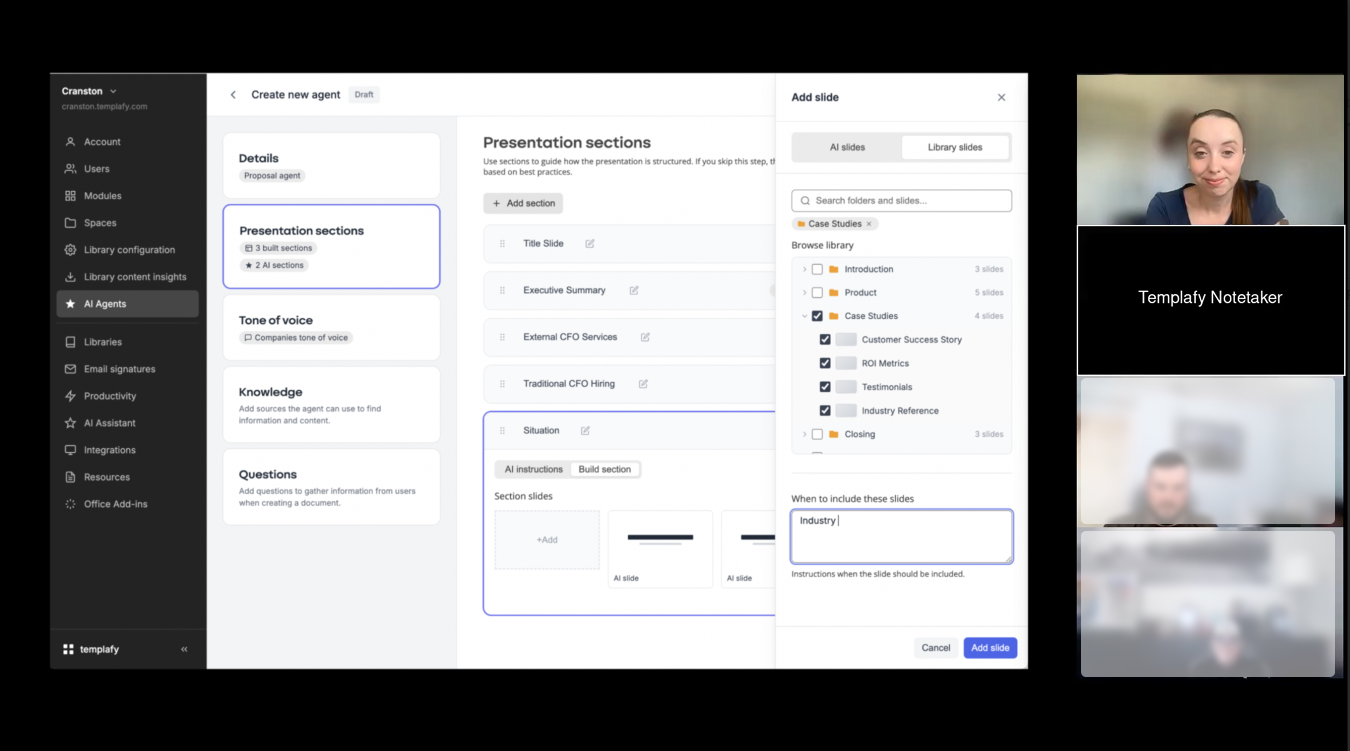
Captured during a customer session.
- Card menu for setup categories
- Section list in the centre column
- Slide-add panel sliding in from the right
What we learned: configuration took a long time and felt very manual. Section configuration emerged as the part that mattered most, but the panel treated it as one menu item among many instead of the primary view.
View prototypeChat-based
An open chat where the admin describes the document, and the system proposes sections and user inputs from the conversation.
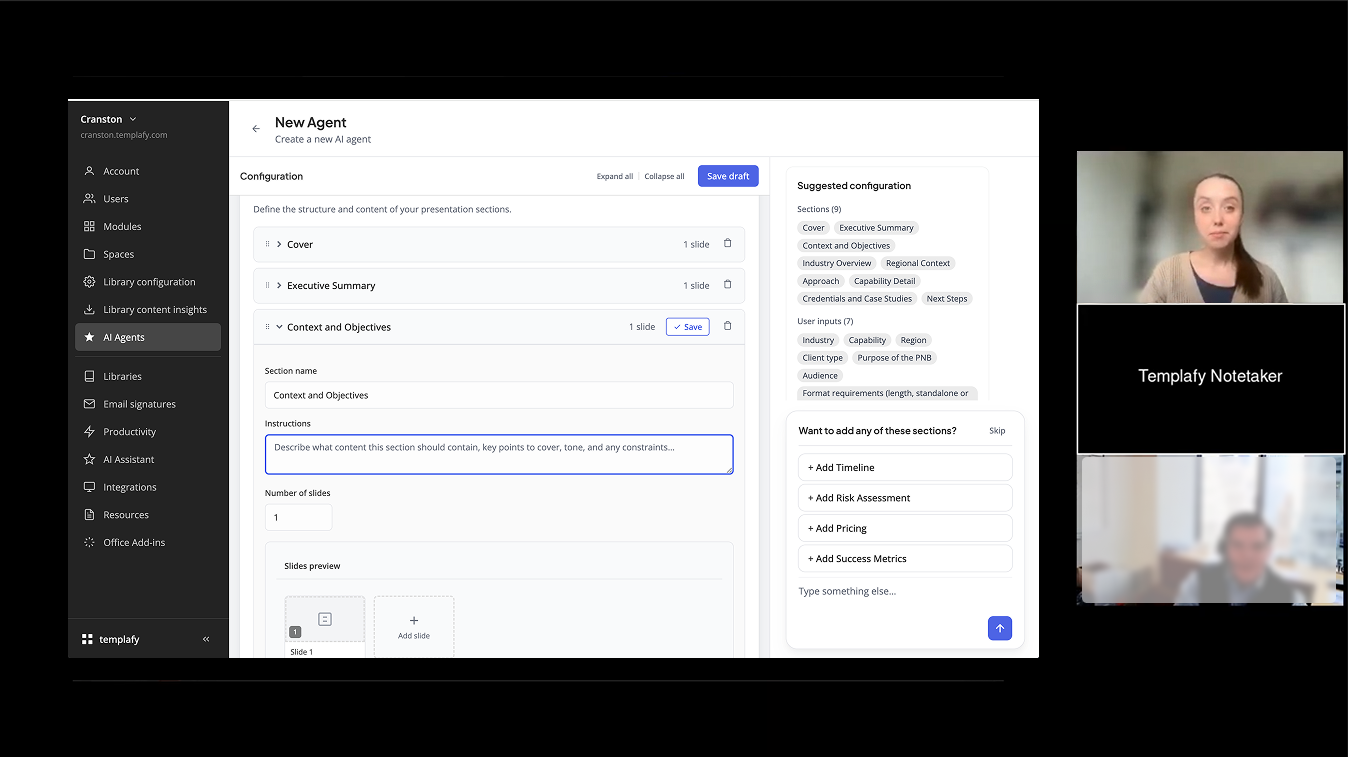
Captured during a customer session.
- Conversational entry point
- Suggested section and user-input chips
- Result preview as a section accordion
What we learned: admins listed sections out loud as they spoke. They wanted that structure visible on screen, not typed into a chat. They also overestimated what the LLM could extract from uploaded documents.
View prototypeWhat testing showed
Admins needed both
Two requirements came out of testing. First, an input for setting context: document purpose, audience, and structure references. Chat handled this well. Second, a clear sequence of sections that could be configured one by one. The panel did not present sections as the primary view. The final design had to address both in one flow.
Scope, after testing
Testing informed the scope. We chose to prioritise reusing slides from the library as the core of section-level configuration, with AI generation, input questions, and knowledge sources around it.
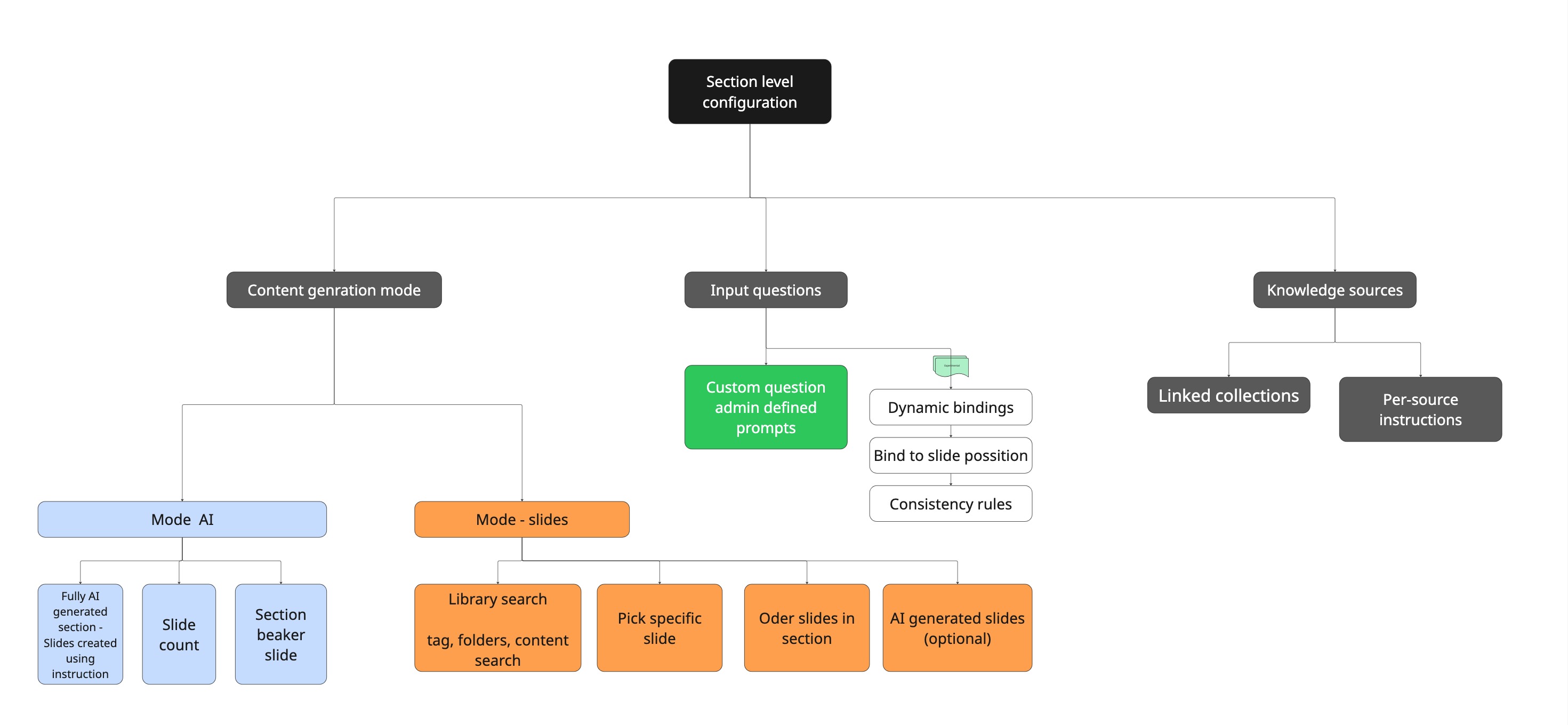
Final scope of section-level configuration. Three branches: how content is produced, what the employee is asked, and what the agent can draw from.
Two more expectations surfaced in sessions.
- Admins did not want to configure each section from scratch. With enough context, they expected the agent to draft an initial setup with instructions and proposed library slides, then review and adjust.
- They expected slide previews in a PowerPoint format. This did not hold. Section output varied based on generation and library search. Slide search was variable based on the number of matches. Slide count became variable.
This led to using content rows instead of slide previews.
Early version of the merged design
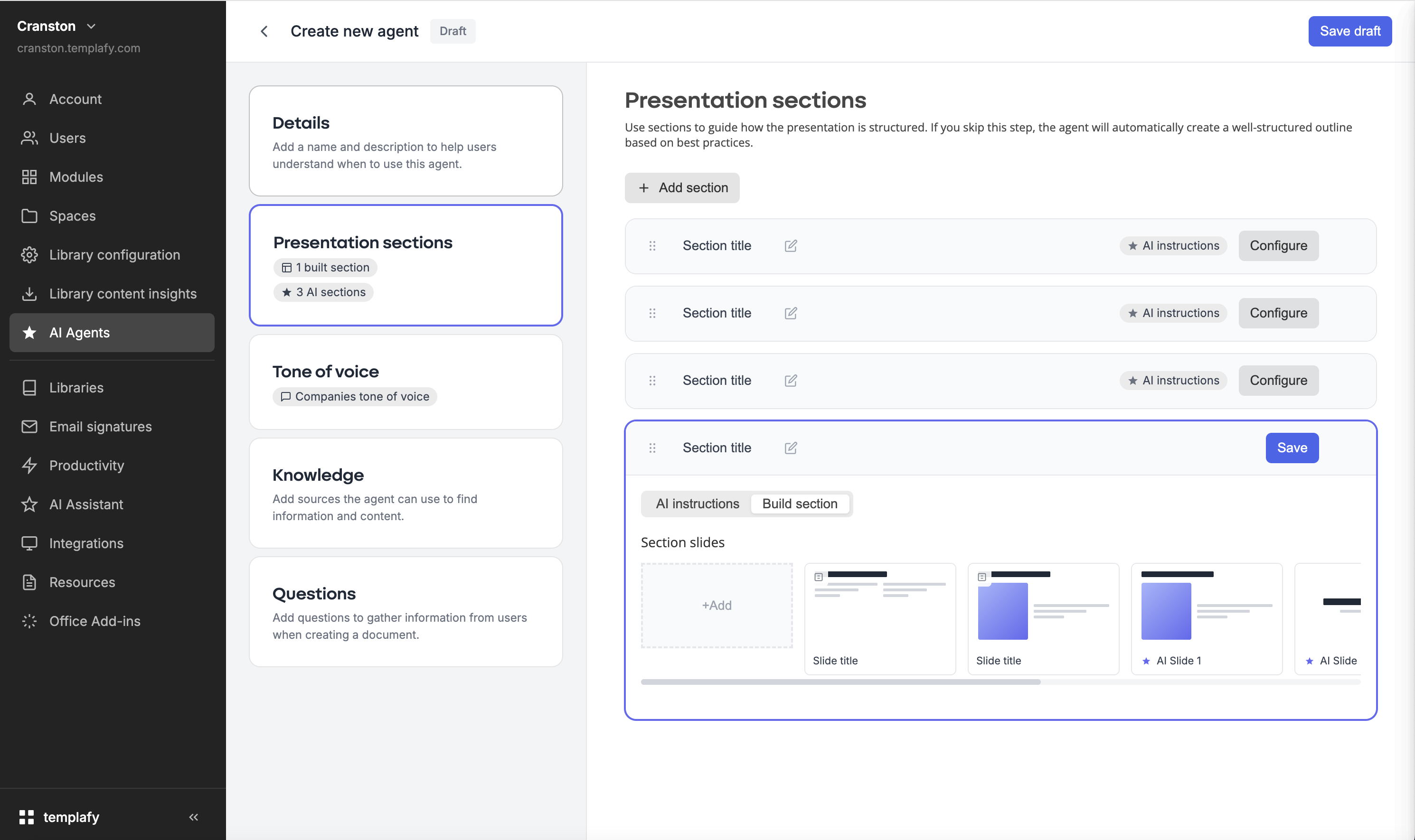
Early version of the merged design. Each section was built as a row of slide placeholders, PowerPoint-style.
Current version
Section rows. Each card represents a section, not a slide.
Library
Agent quality depended on library structure
This surfaced in the first round of testing.
Library organisation varied across customers. It depended on the admin's role and whether maintaining the library was part of their job.
One customer, a specialised executive search firm, maintained 16,000 slides organised by industry and role. Each service line owned its folder and kept it current. Slides had enough metadata for the LLM to match section requirements to the right content. Others had a few folders, repeating slide names and slides used for layout rather than content, with little or no metadata.
The same agent, used on different libraries, produced different quality output regardless of configuration.
Well-organised
Browsed through the PowerPoint task pane. Multiple folder levels, slides grouped by industry and role, consistent naming.
Under-organised
A customer's library in session. A handful of top-level folders, generic slide names, almost no metadata.
Library quality depends on ownership and upkeep. In many teams, this sits alongside other responsibilities.
The product needs to handle this variance. Agent output reflects library maturity. This is set as an expectation during sales and onboarding, not treated as a guarantee.
Surfacing how slides are used
We use tags to inform admins where each slide is being used. Each slide can be tagged by aspect ratio and by the agents that use it. A slide tagged "Sales presentation agent" tells the admin that editing or removing it affects that agent's output.
AI use is opt-in at the slide level. "Make available as AI layout" lets the agent use the slide as a template. Structure is kept, text is regenerated by the AI. The admin decides which slides qualify.
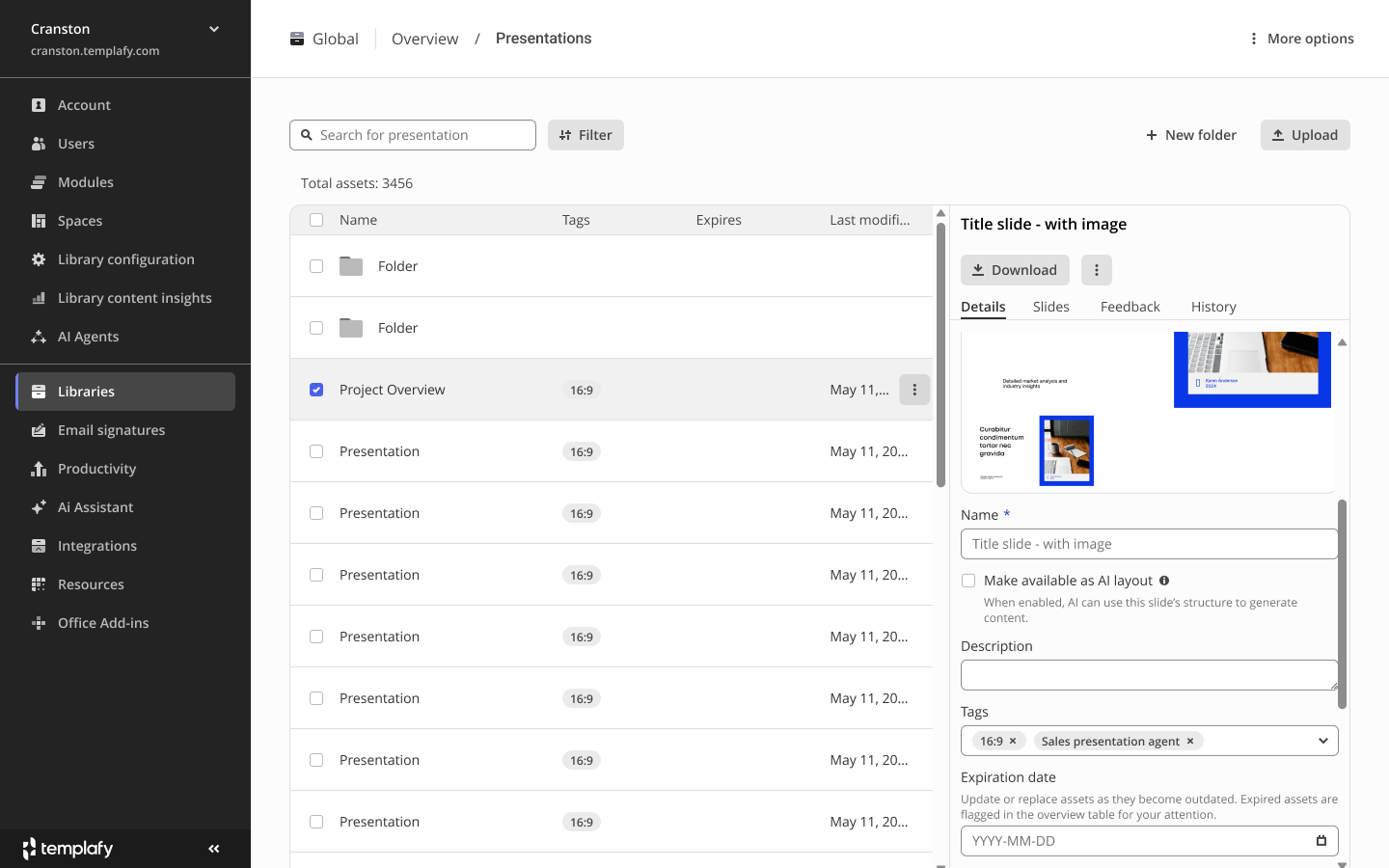
Library admin view. The Tags column shows the agents each slide participates in. The detail panel exposes a "Make available as AI layout" toggle so admins decide what the agent can use.
Final design
Setup input, then sections
The design starts with a single input. The admin defines the document purpose, audience and blueprint. This came from the chat direction.
Sections sit below as an accordion. Each section contains its setup with instructions, slide sources and content type, AI generated or library based.
Final design: one input at the top, section accordion underneath.
Configuration types
1. Fully AI generated section
The admin provides a title, instructions and a slide count, or lets AI decide. The agent generates the slides.
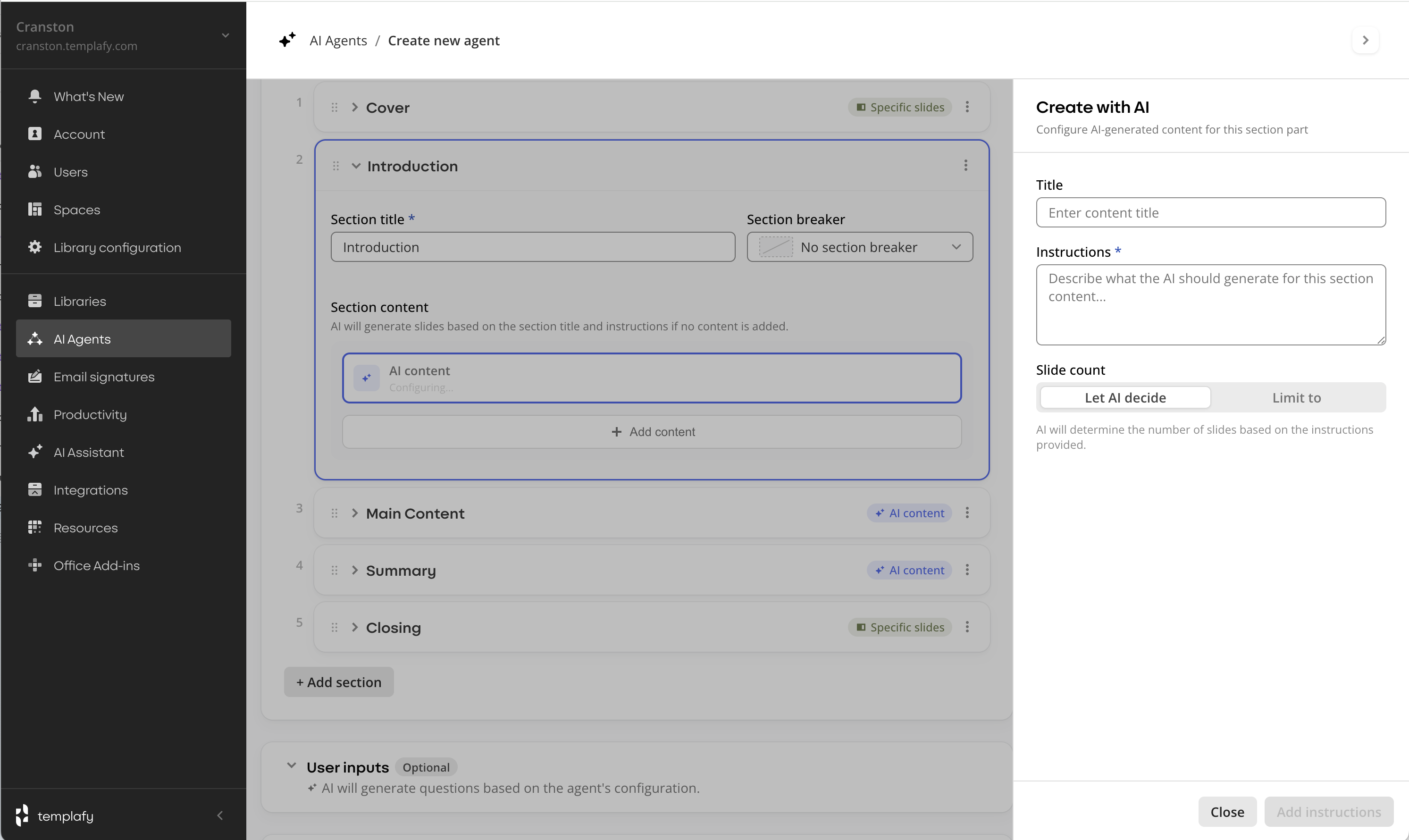
AI content configuration panel. A title, instructions describing what the AI should generate, and a slide count (or the AI decides).
2. Slide by slide assembly
The admin selects slides from the library.
Specific slide. A single approved slide is placed in the section. Predictable and fixed. Used for anchor slides.
Smart slide selection. A folder is selected. Input questions such as industry or role determine which slides are pulled. Multiple slides can be added at generation time.
Admins define slide order. AI generated slides can be mixed into both modes.
Specific slide
Smart slide selection
This is exactly what we need. The ability to search our slide library and create a presentation. We don't mind deleting a few slides.
Admin, private preview session
3. Input questions for the employee
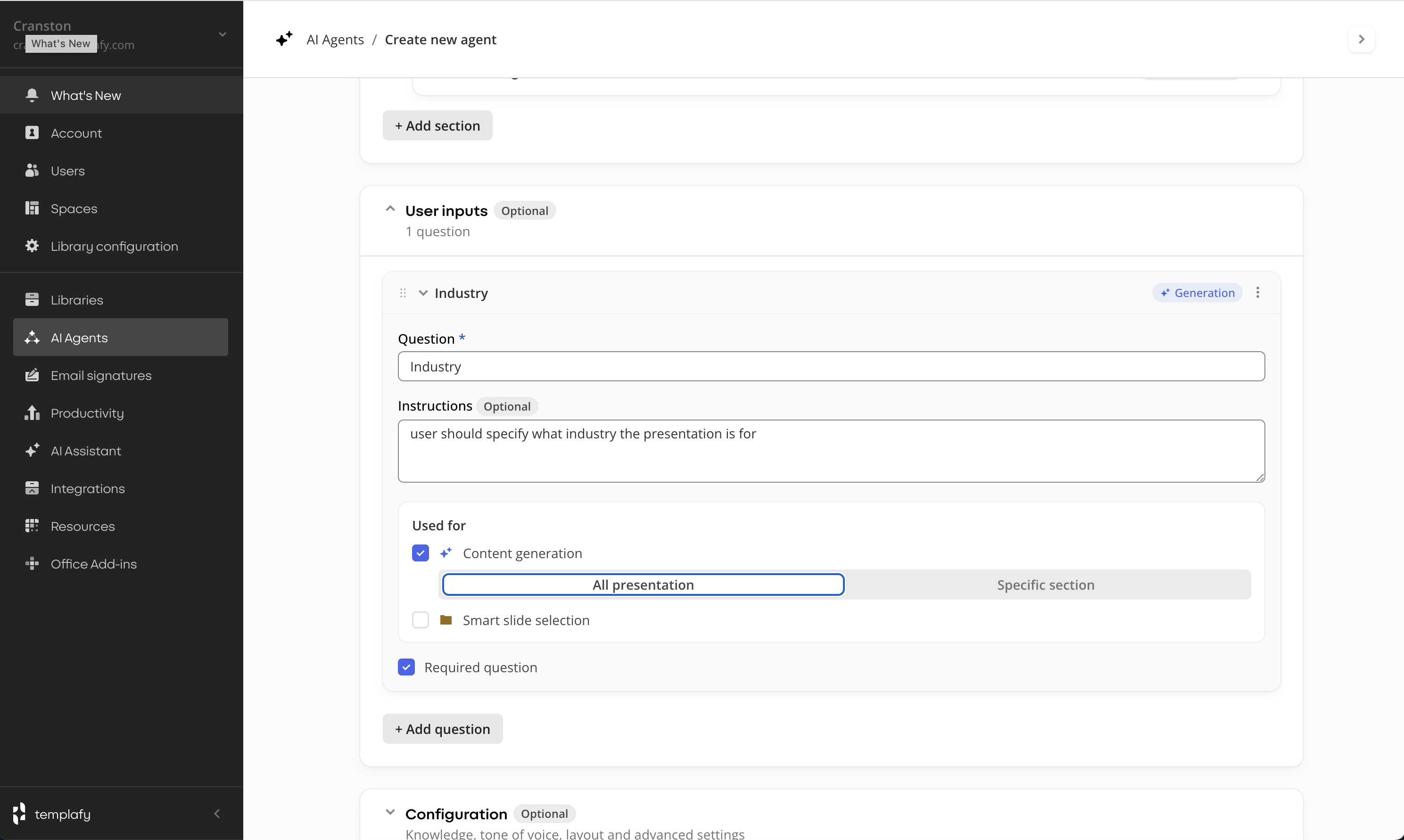
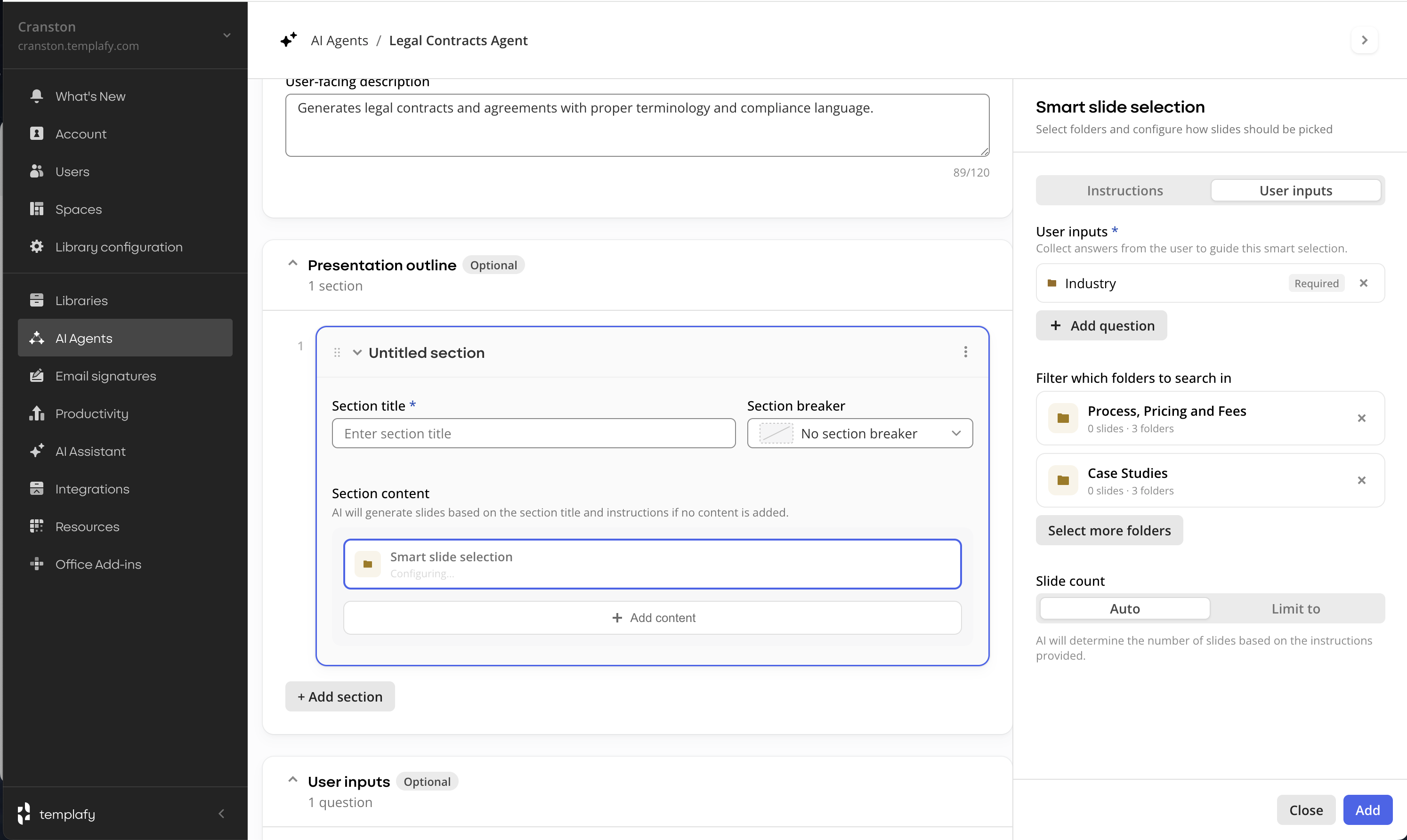
The admin defines inputs such as industry or target role. The AI turns them into questions answered before generation.
Inputs can be used for content generation, smart slide selection, or both.
For content generation, answers guide how slides are written. Scope can be the full presentation or a specific section.
For smart slide selection, answers filter which slides are selected from the library.
Question for content generation
Question for smart slide selection
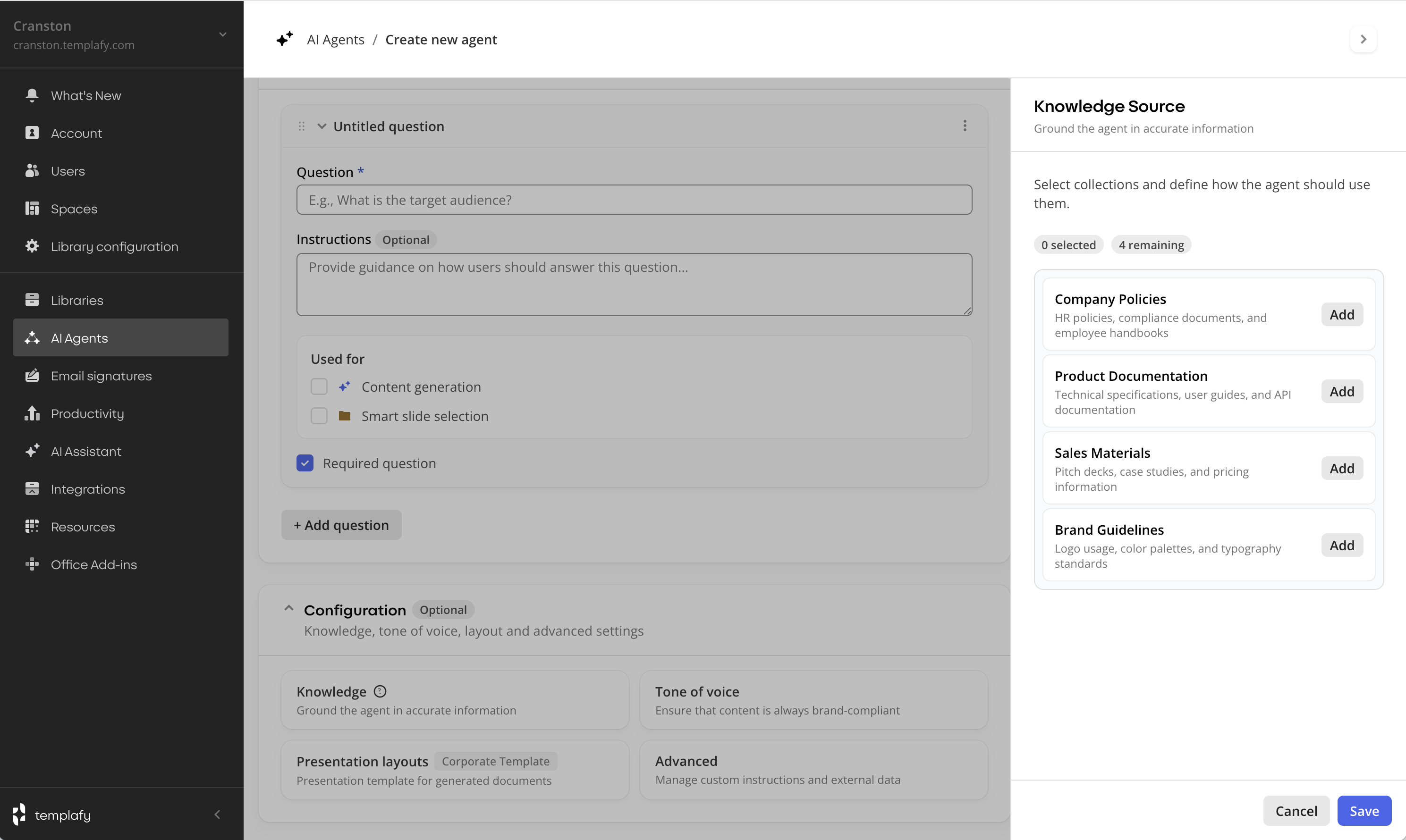
4. Knowledge sources
Uses existing knowledge collections on the platform. No new authoring surface.
Admins select which collections the agent can use and define instructions per source.
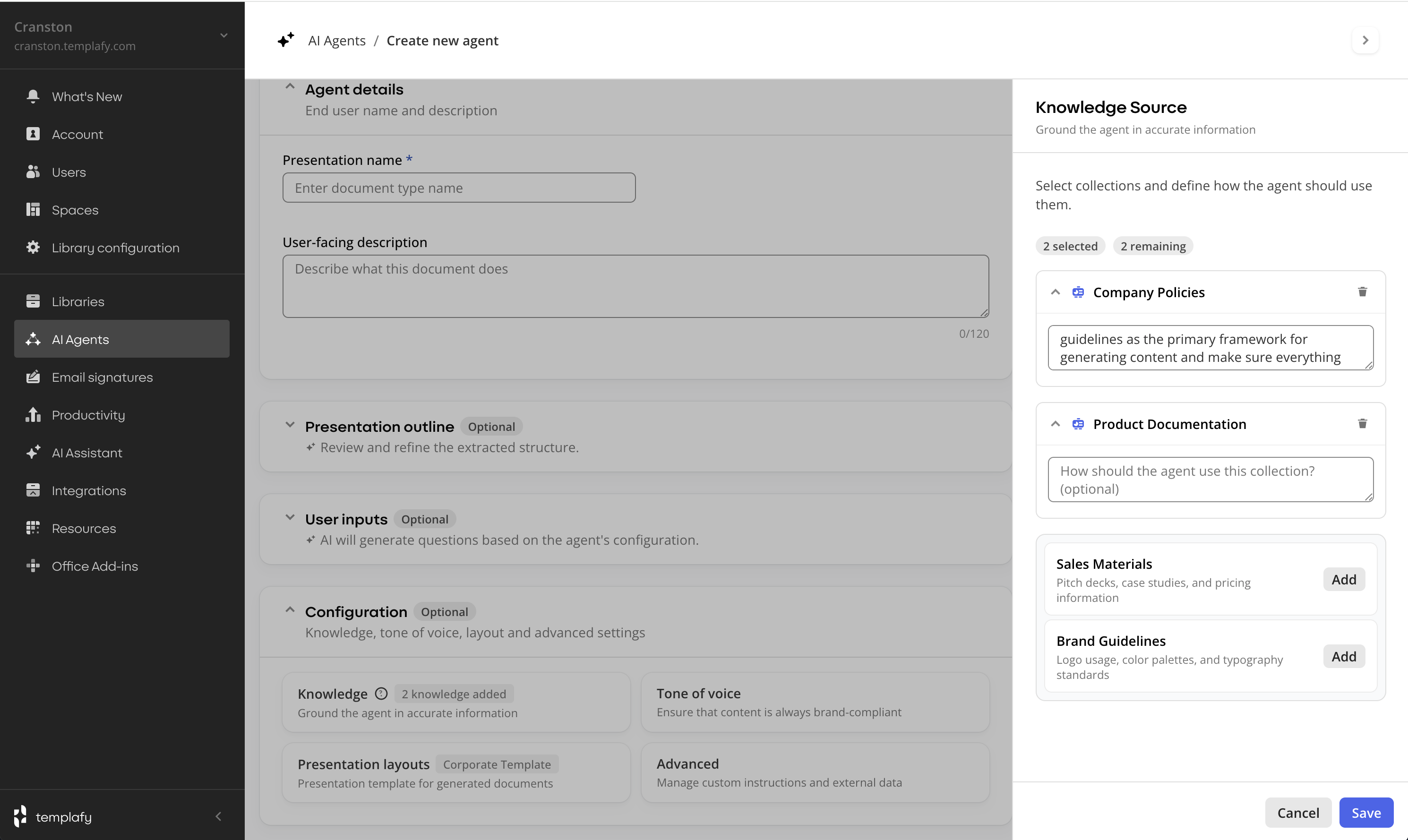
Knowledge reuses existing knowledge collections. Admin selects collections and writes per-source instructions.
Exploration
Configuration display
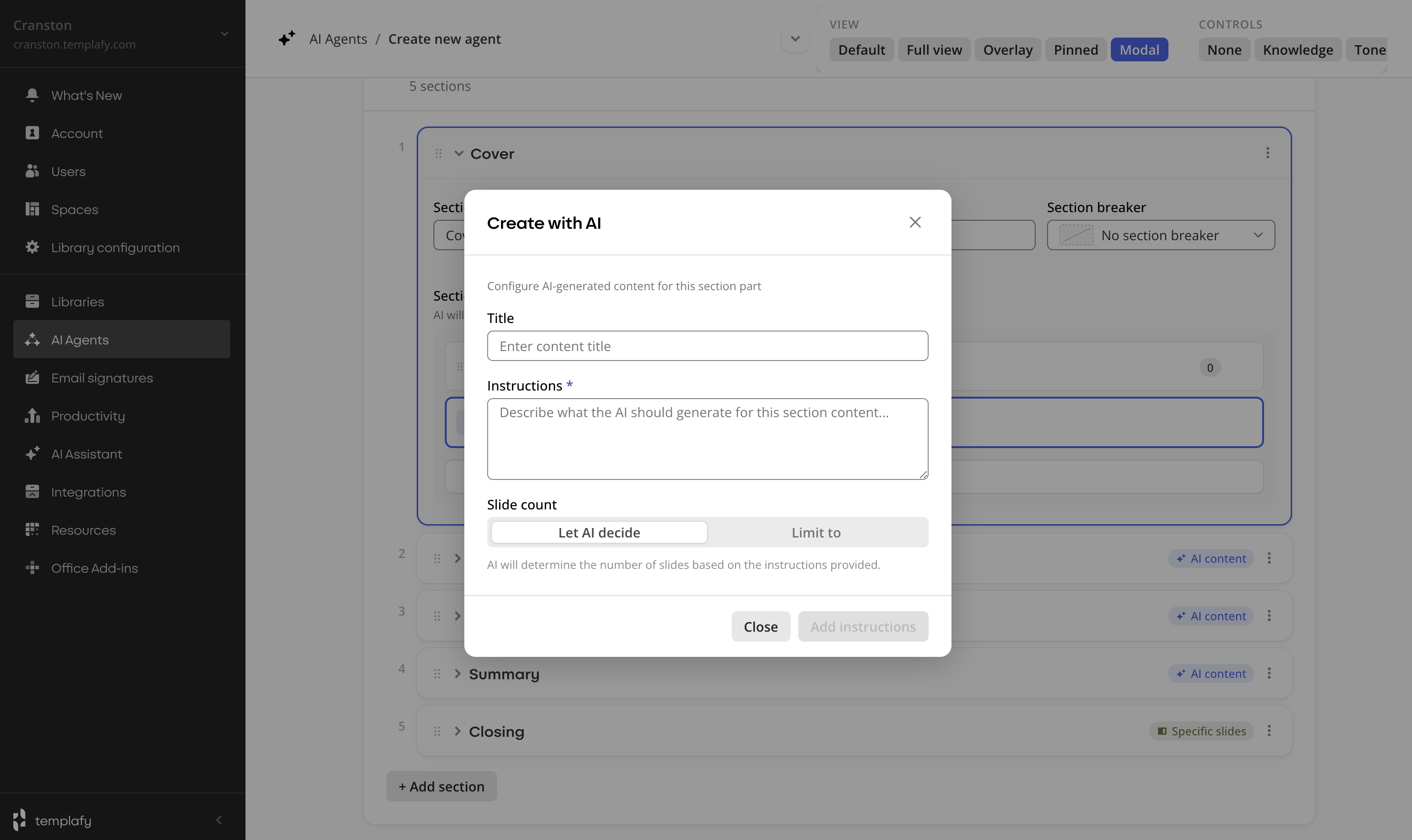
The configuration surface around the section list was tested in several variants. Modal, content push, pinned and overlay.
Pinned reduced space for the section list when not in use. Content push disrupted the layout during configuration. Admins needed to keep the section structure visible while adding slides.
The overlay pane was chosen. It allows configuration without losing context.
Modal
Content push
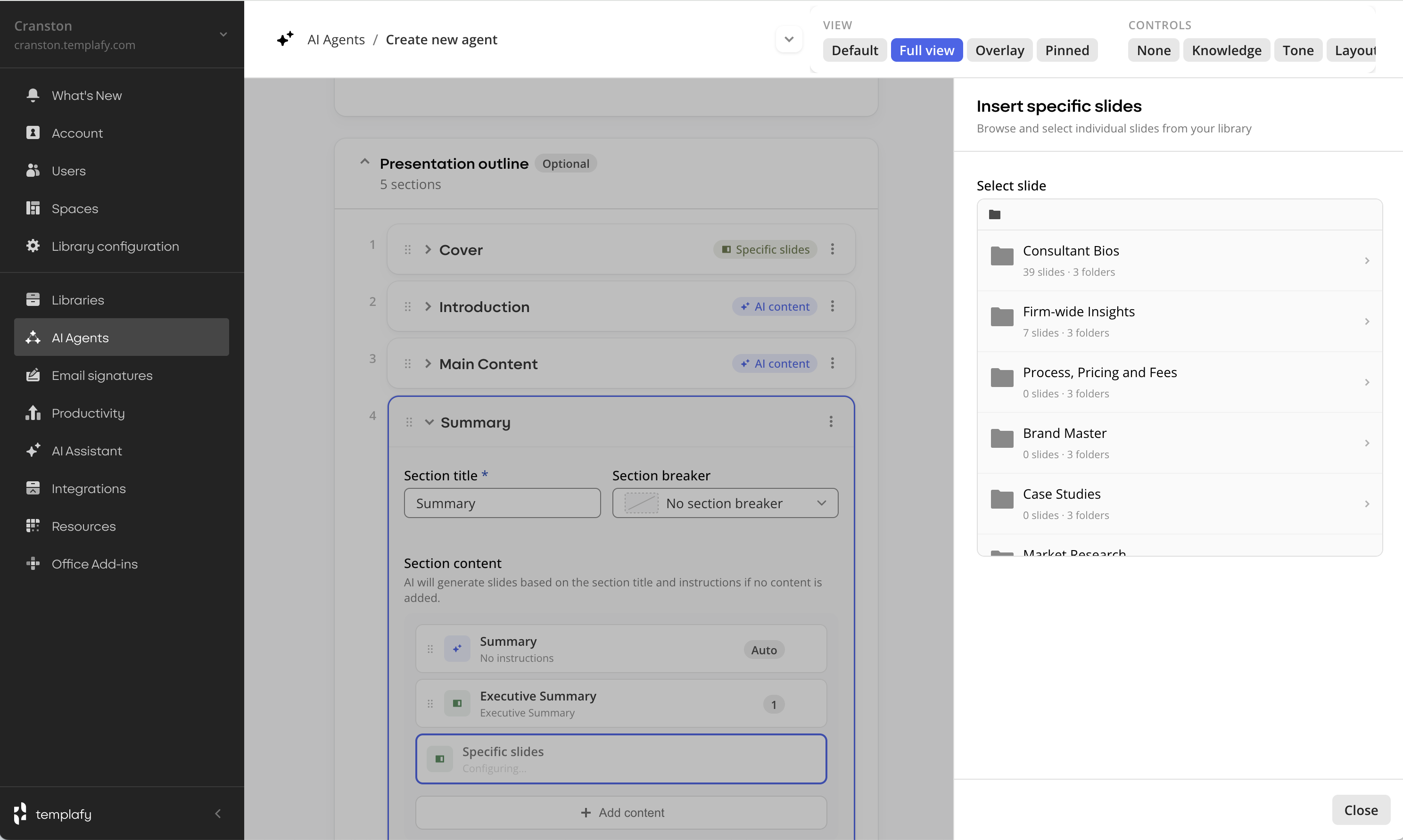
Pinned
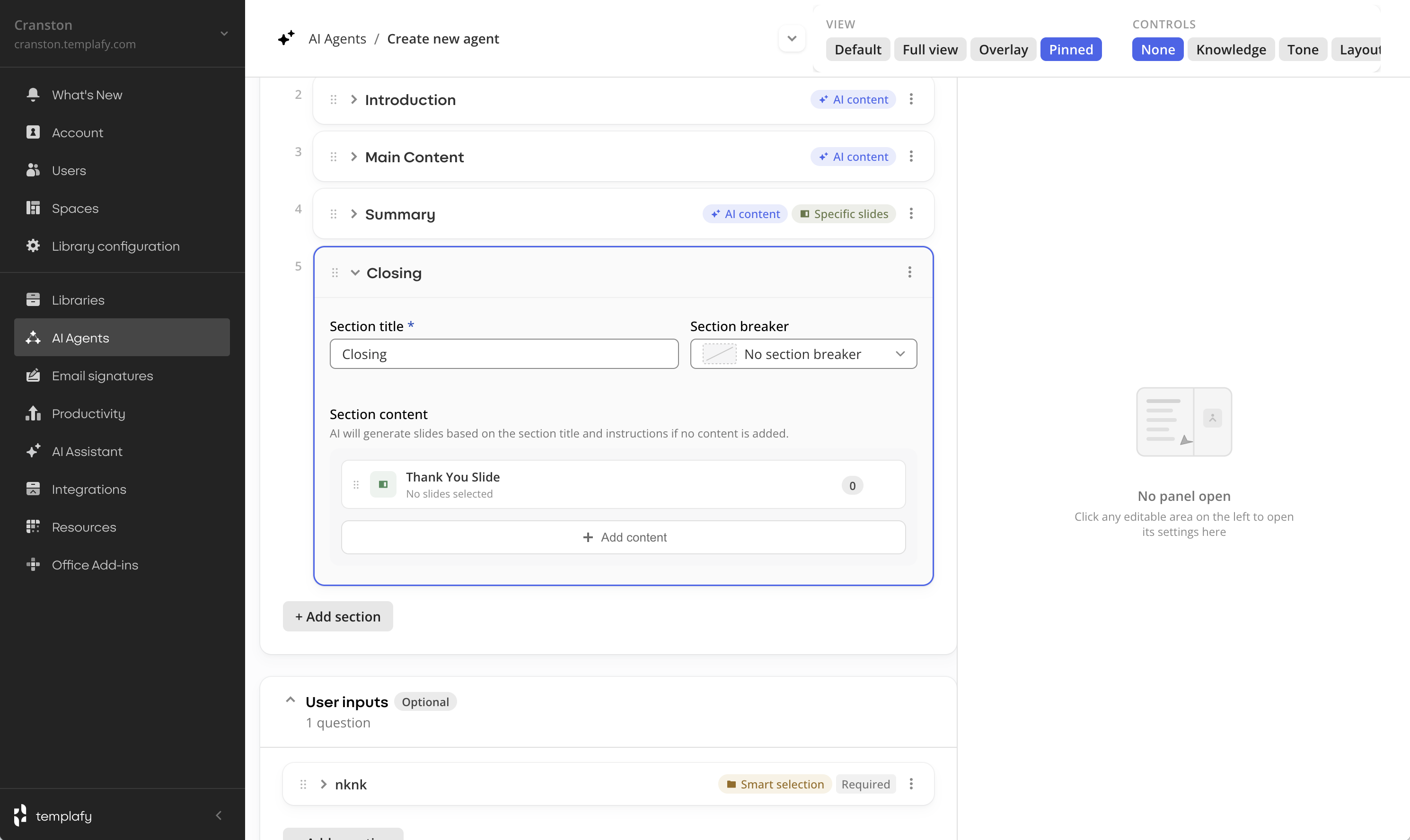
Overlay (chosen)
Prototyping
Internal testing before customer sessions
Prototypes were tested internally with the PM and discovery engineer, then adjusted and used in customer sessions. Sessions were task driven and focused on creating a proposal blueprint.
Try the prototype
Create a document agent
Walk the admin flow end to end. Set up a proposal agent, configure sections.
Outcome
Live with private-preview customers
The section-creation step is live for all five private-preview customers. Each one has at least one agent configured and in use. Admins are creating agents and generating proposals for a limited group of users inside their organisations.
Templafy uses the product internally too: an RFP agent that matches security questions to answer slides from our library.
I presented the section-first direction to the CPO. The same pattern is now informing other AI features across the platform. The architecture held up beyond the original use case.
What is next in design: integrating user-input questions directly into each section, rather than treating them as a separate, detached feature. When a proposal section depends on industry or target role, the section itself should define the input it needs, not a global form the user fills before generation starts.
Key learnings
What this work taught me
Users
Match existing practice, not the technology.
Chat was the most technically novel approach and failed fastest. Section-first won because customers already thought in sections.
Users
Users often want review, not configuration.
Admins wanted the agent to draft a first version and the interface to help them correct it. Builder to reviewer changed most of the screens downstream.
Research
Research re-orders what ships.
Once admins surfaced what mattered, the ship list changed. Structure became the spine: visible while building a template, visible while editing one.
AI and craft
AI changes the pace of prototyping, not the discipline.
Claude Code shortened concept-to-validation from weeks to days. The build got faster, the thinking did not. Treat each prototype as disposable: commit cleanly, throw away early.
AI and craft
Library structure is part of the AI product.
A configuration UI is only as useful as the library it points at. Onboarding has to cover library hygiene, not just feature training.
AI and craft
Generating UI is cheap. Choosing what to build is the work.
Screens can be made in seconds. The harder work is defining the problem and deciding what not to build. UI nobody uses is waste.
Case study based on product design work at Templafy. Some product details have been described at a higher level for confidentiality, and private preview customers are not named.