Layout Guide
2025 · Lead Product Designer · Templafy
An AI agent can only build an on-brand deck if it knows which layout to use for what. A vision model reads the brand's slides and drafts those rules. Admins review and correct them instead of building from scratch.
Context
An agent that builds decks has to know the layouts
Templafy is a document automation platform for PowerPoint, Word, Excel and Outlook. Admins, the brand and template teams, set up templates, slide libraries and brand assets. End users build documents from them every day.
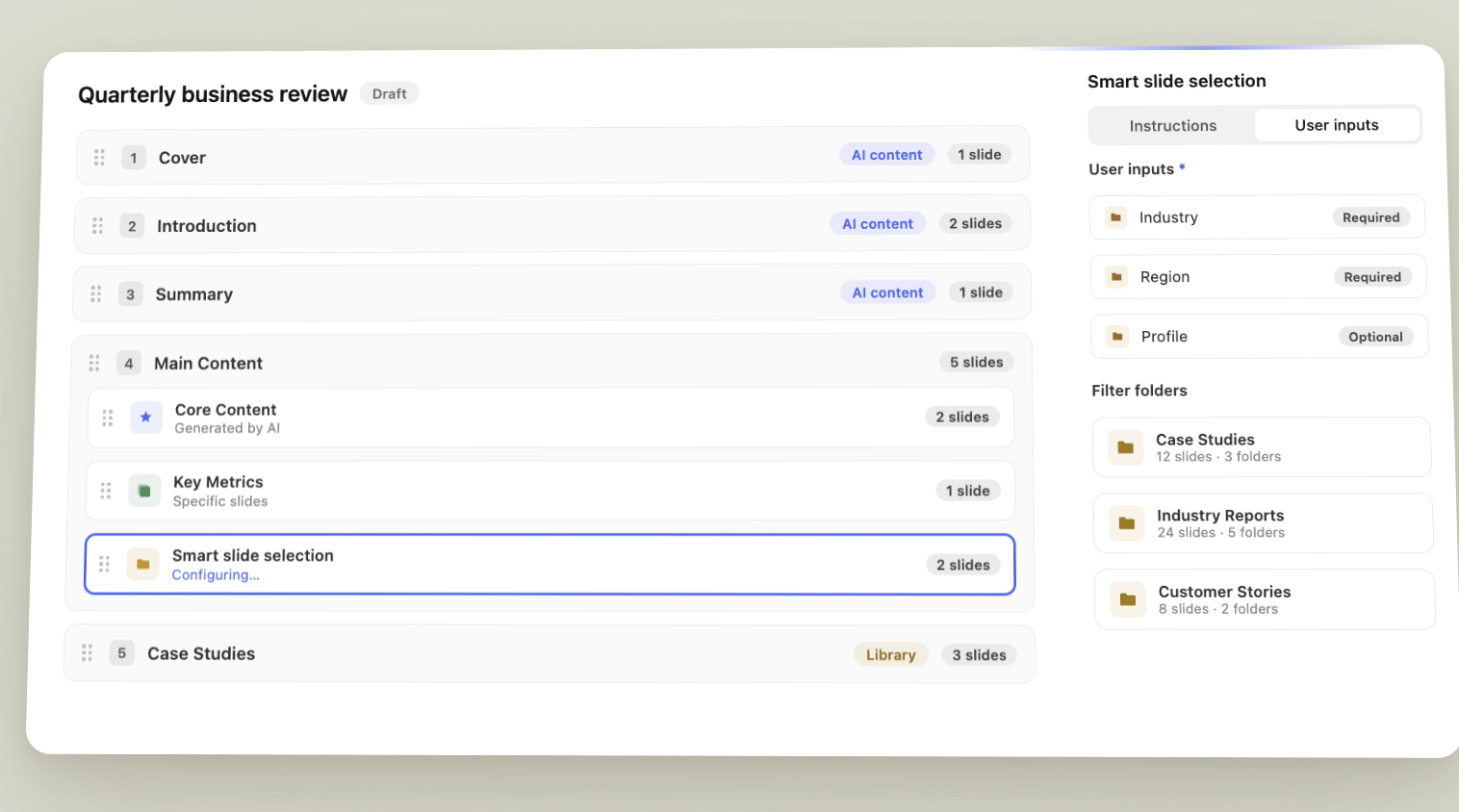
For the last year the focus was AI-generated presentations. An end user prompts for a deck, and the agent writes the content and builds it from the company's own branded slides. For a large brand, generic slides are not enough. They need control over the layouts.
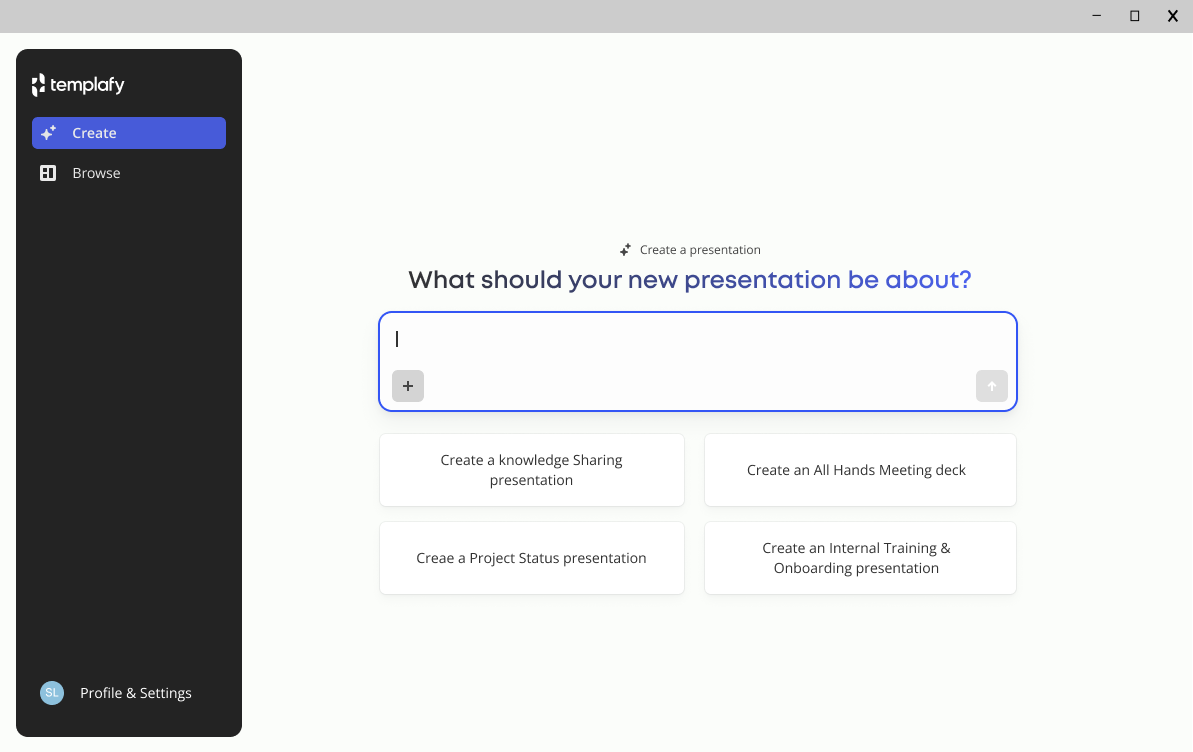
The end-user side. A prompt turns into a branded deck.
Other tools were shipping presentation generation at the same time, some as add-ins inside Microsoft. Generating slides was not the differentiator. Generating them on the customer's own layouts, every time, was.
My role
Lead product designer on document agents, with two product managers, a discovery engineer and three engineering teams. I ran discovery, interaction and UI design, and the flow end to end for three parts: the custom document agent, the Layout Guide and the knowledge source inside the agent configuration.
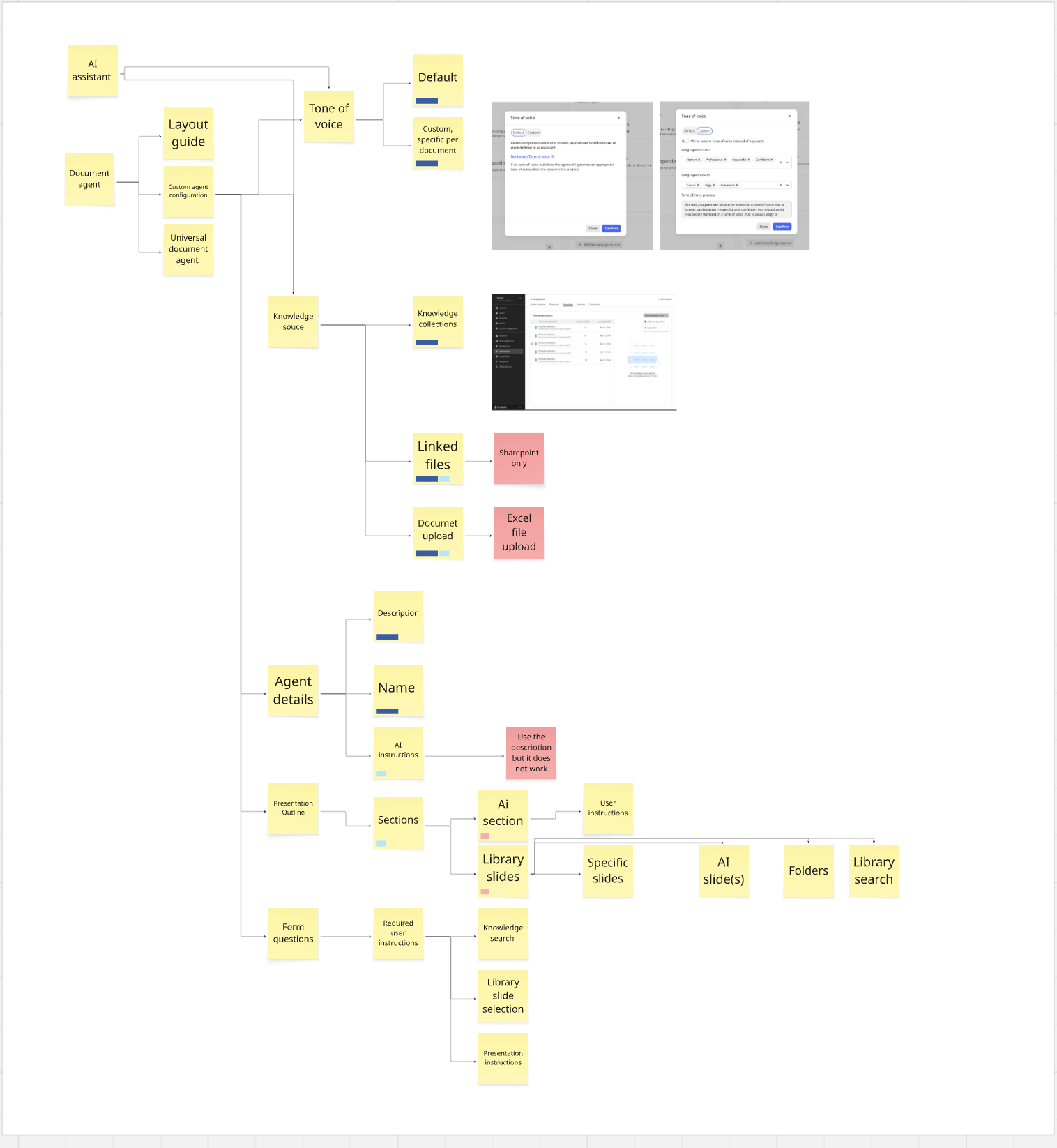
How the parts connect. The Layout Guide sits upstream of everything the agent generates.
Problem
No metadata on the layouts
Layouts had no purpose, no placeholder rules and no content type. The agent had to make two calls with nothing to go on.
Select the layout
A layout built to display data ends up carrying bios.
Map content into placeholders
Text lands where an image belongs, and a slot sized for one line gets a paragraph.
How each role feels the gap
Buyer
The brand team
- Buys on-brand output
- Owns one outcome: every AI-generated presentation comes out on brand
Admin
The template admin
- Sets up the layouts the agent can use
- Enriches the slide master by hand, or waits on an external partner
- Gap: the layouts stay few and out of date
End user
The employee prompting a deck
- Prompts a presentation and gets a branded deck
- Gap: placeholders are filled wrong, text overflows, the same few layouts repeat
Research
How admins manage layouts today
I interviewed three admins from private-preview customers and one solution partner that sets up templates, libraries and automations for brands.
The master is forgotten
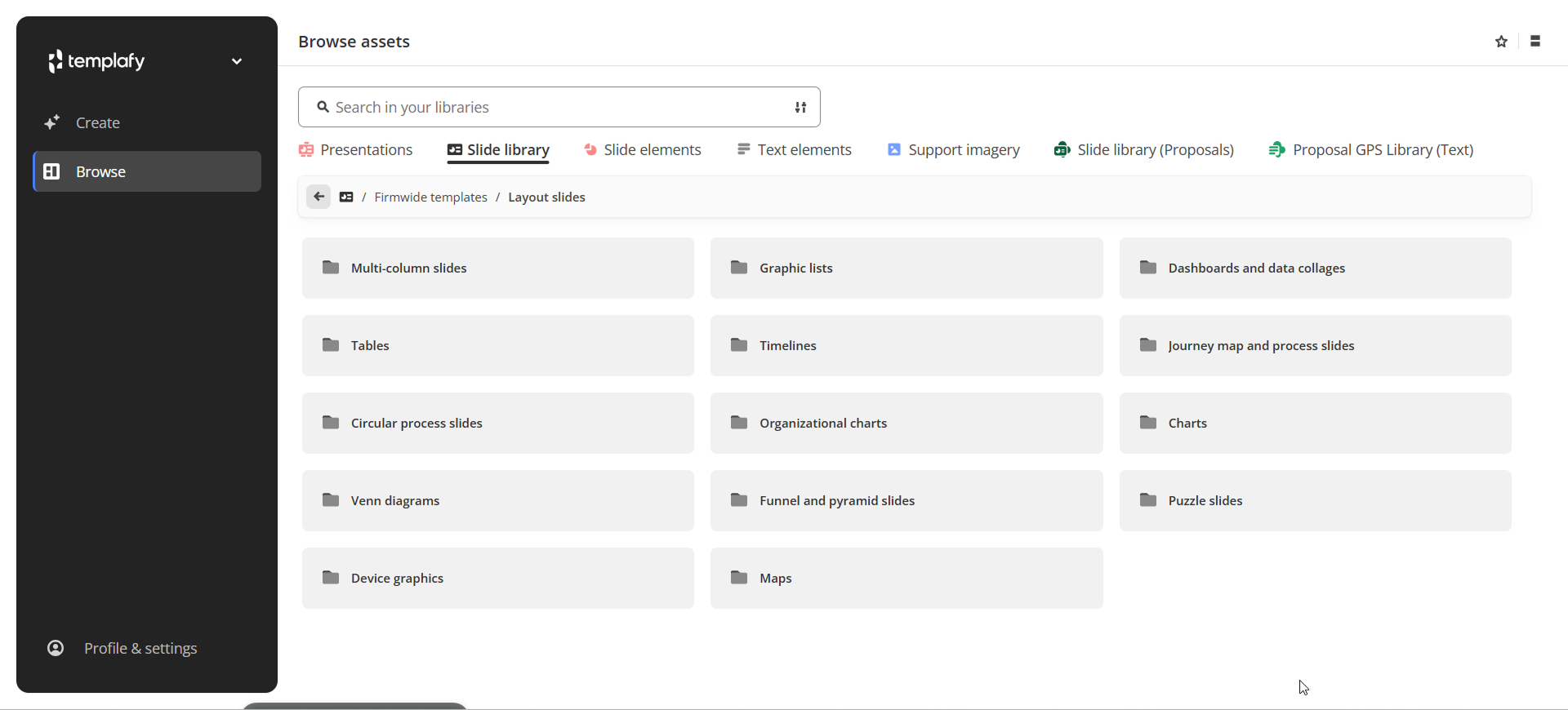
The master deck held a few layouts, used to start a blank presentation. Up-to-date layouts lived in the slide library, in folders like Global, Firm-wide or Layout slides, and were dragged into decks outside the AI flow.
Masters are rarely maintained
Masters are seldom maintained in-house. Updating one means contacting an external partner. The current layouts sit in the library.
Layouts grouped by purpose, in the library
Companies already group layouts by purpose. The product never captured it.
Library folders by purpose
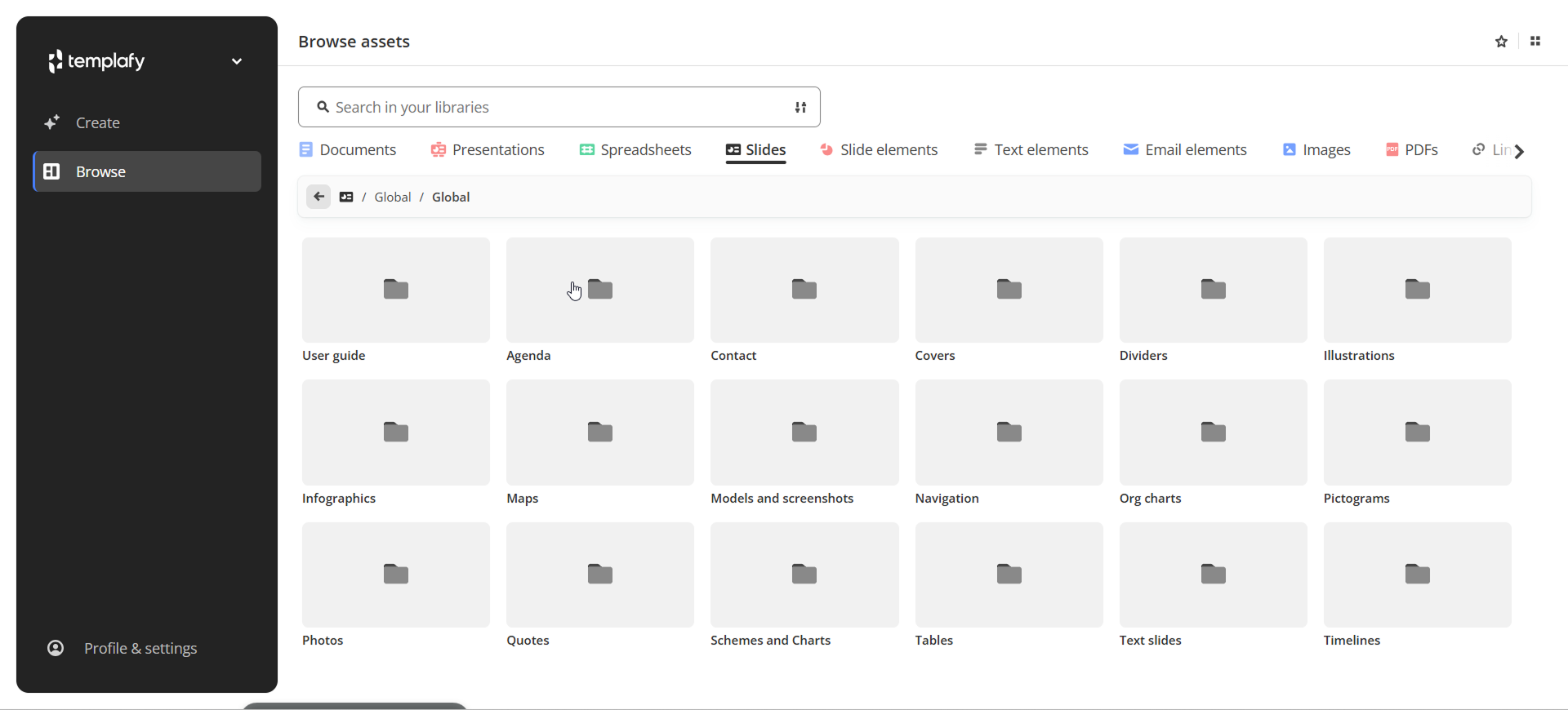
Layout slides, grouped by use
Technical discovery
The master can carry the data: name each placeholder correctly and the model can read it. That is a lot of manual work, layout by layout, on files that are rarely touched. Some masters also hold only a handful of layouts, so decks come out repetitive.
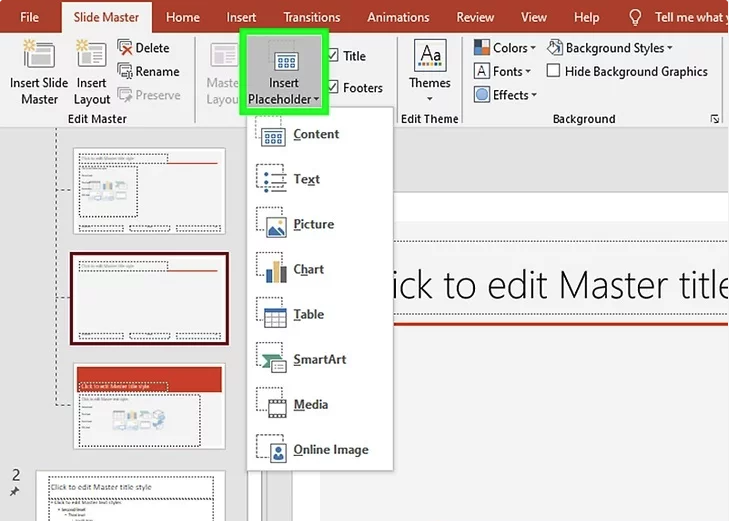
The slide master supports typed placeholders. Almost nobody uses them.
The discovery engineer tested a vision model that reads a whole deck, works out what each slide and each placeholder is for, and writes that metadata itself. The agent reads it while compiling a presentation, to select the slide and fill it.
Placement
Where the setup should live
Four places were on the table. The choice came down to who sets it up and what product it is sold with.
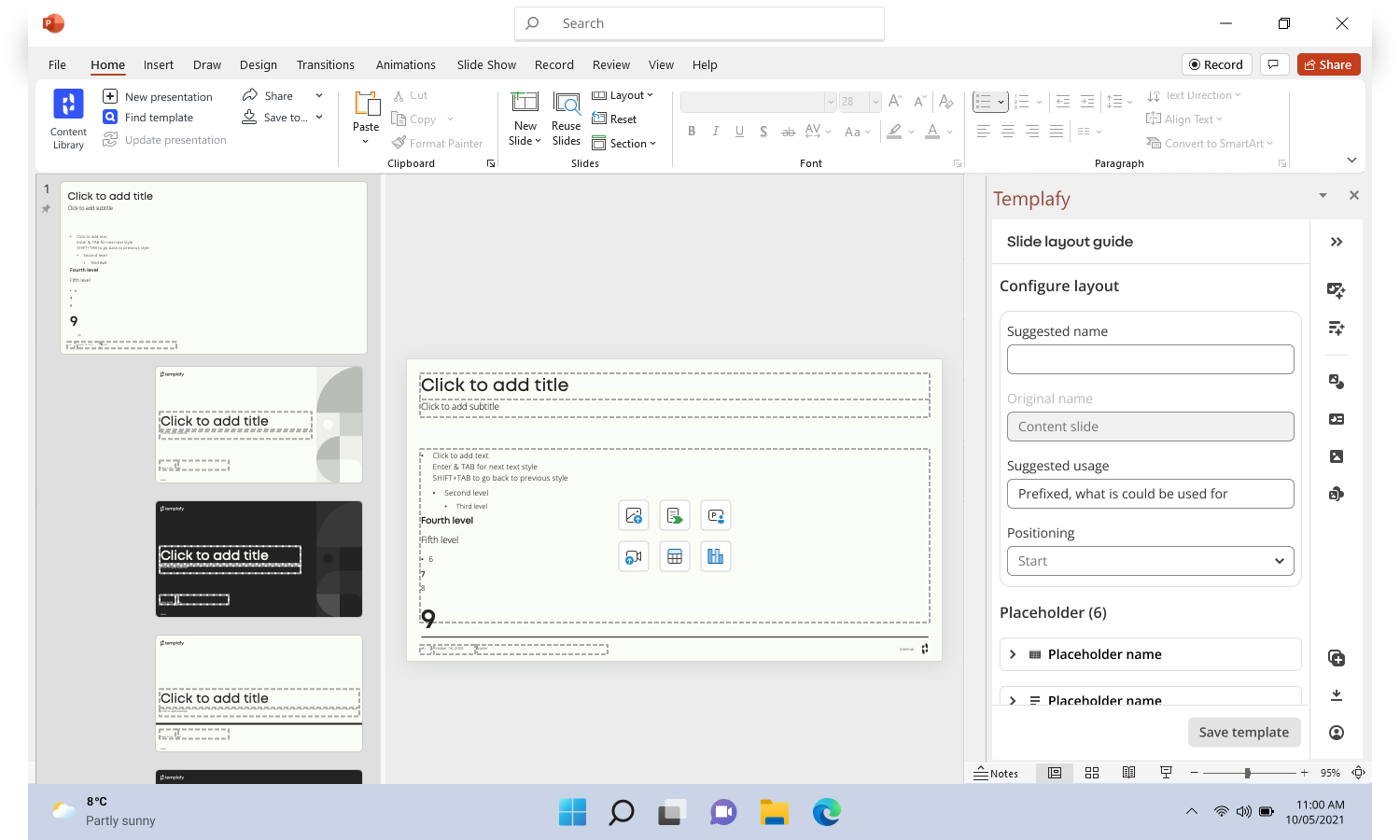
Task pane in PowerPoint
Building layouts where the slides are. Friendlier than the master, but still by hand, layout by layout.
A separate configuration page
One more place to find, for a feature that only serves the agent.
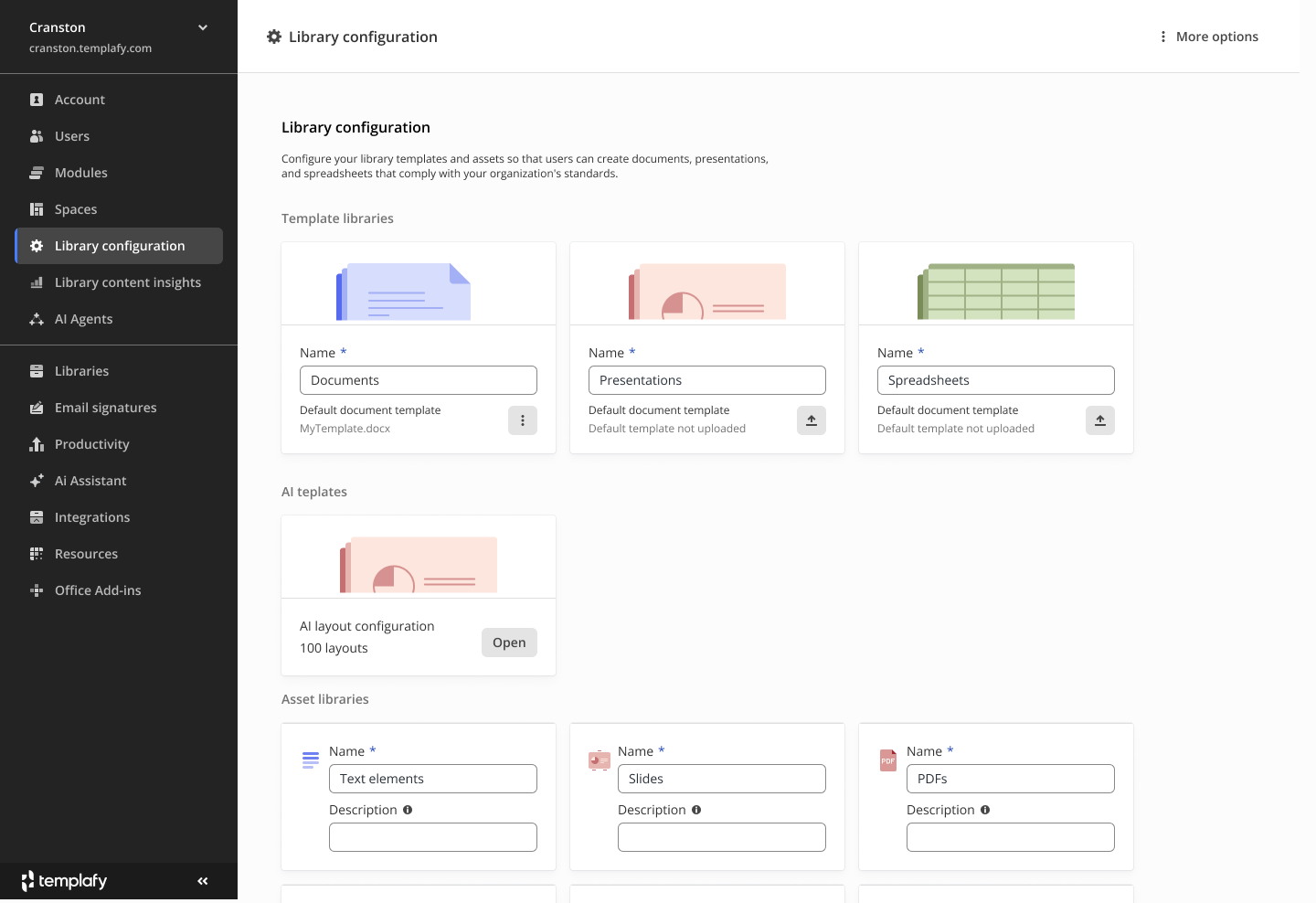
Library configuration
Today it would mean two layout configurations, one for AI and one for the manual workflow. Confusing, and a large technical lift.
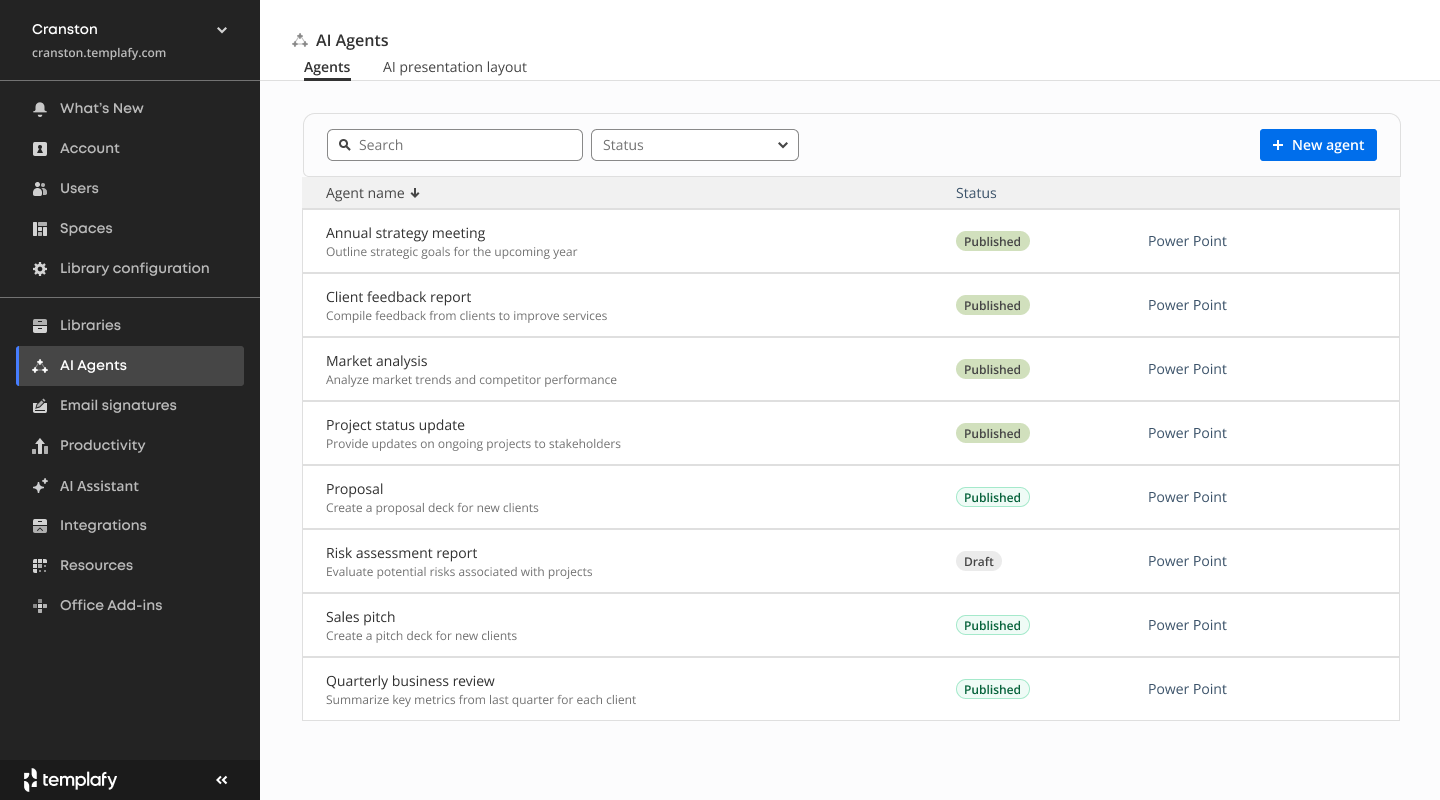
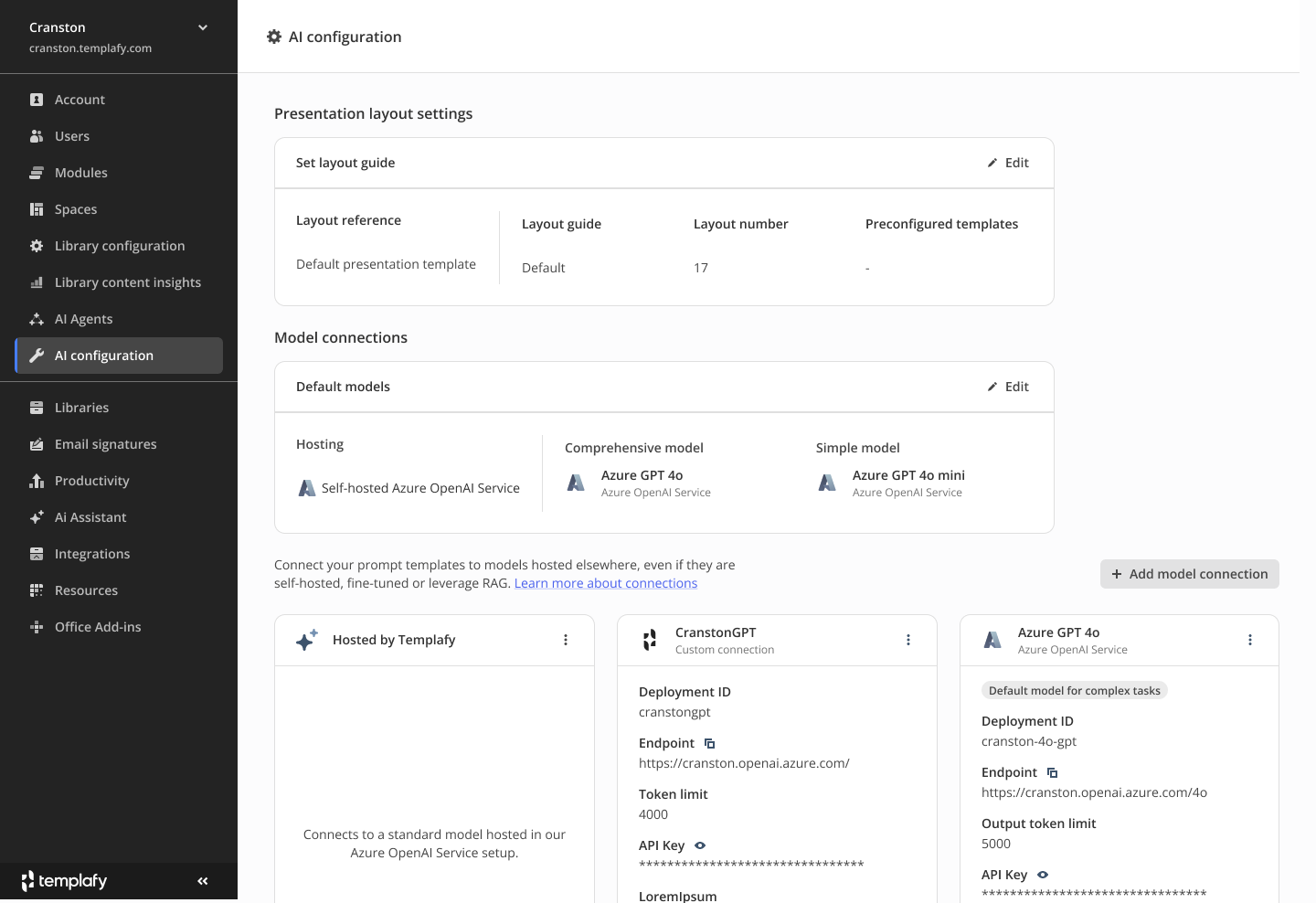
AI agent configuration
AI Agents is sold standalone and onboarding has to be no-touch, so setup ships with the product it belongs to.
Design decisions
Review instead of building
Build the layouts by hand
Name every placeholder in the master, or build the same rules in a friendlier interface. Either way the admin writes them, layout by layout.
Read the library
A vision model reads the slides they already have and drafts the rules. Setup becomes upload and confirm. The model does the first pass, the admin keeps the final call.
Map what the model has to extract
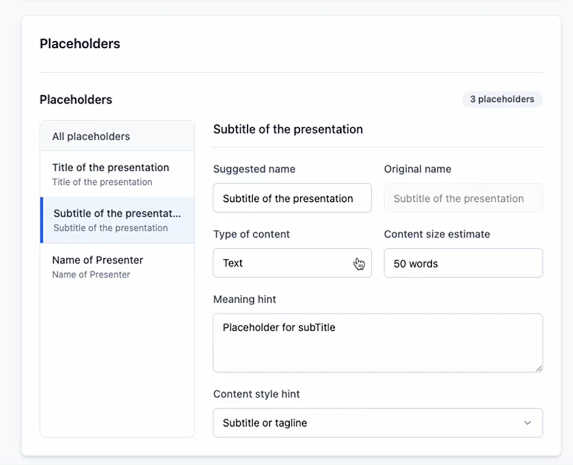
A placeholder needs a type, and a type is not specific enough on its own. I mapped a second level: the hint that tells the model what kind of content belongs there. Grounded in what the slide master supports, and extended where it needed to go.
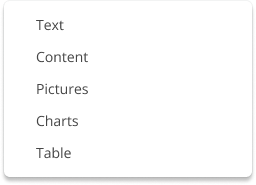
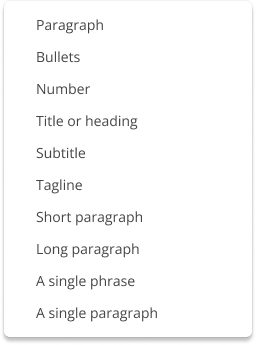
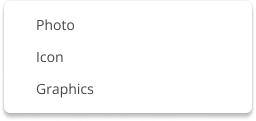
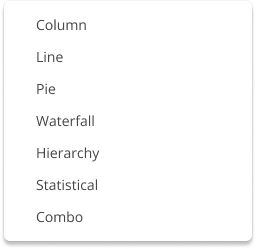
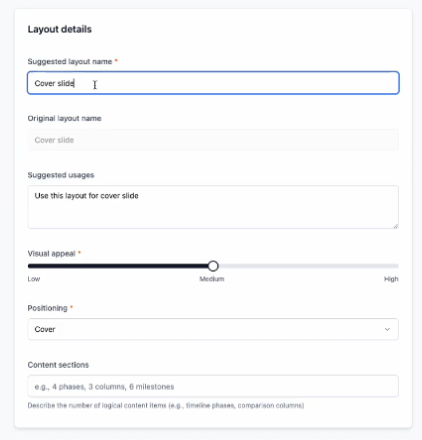
Iteration 1: everything the model extracts
The first iteration surfaced everything the model could extract, for the layout and for each placeholder. Rich, and busy. Did the admin need all of it?
Iteration 1Layout details
Iteration 1Placeholder details
Iteration 2: text and image only
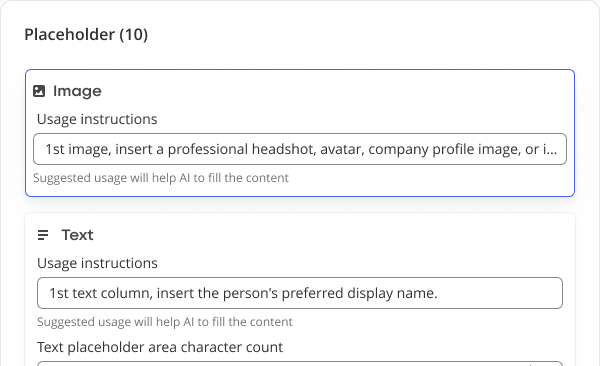
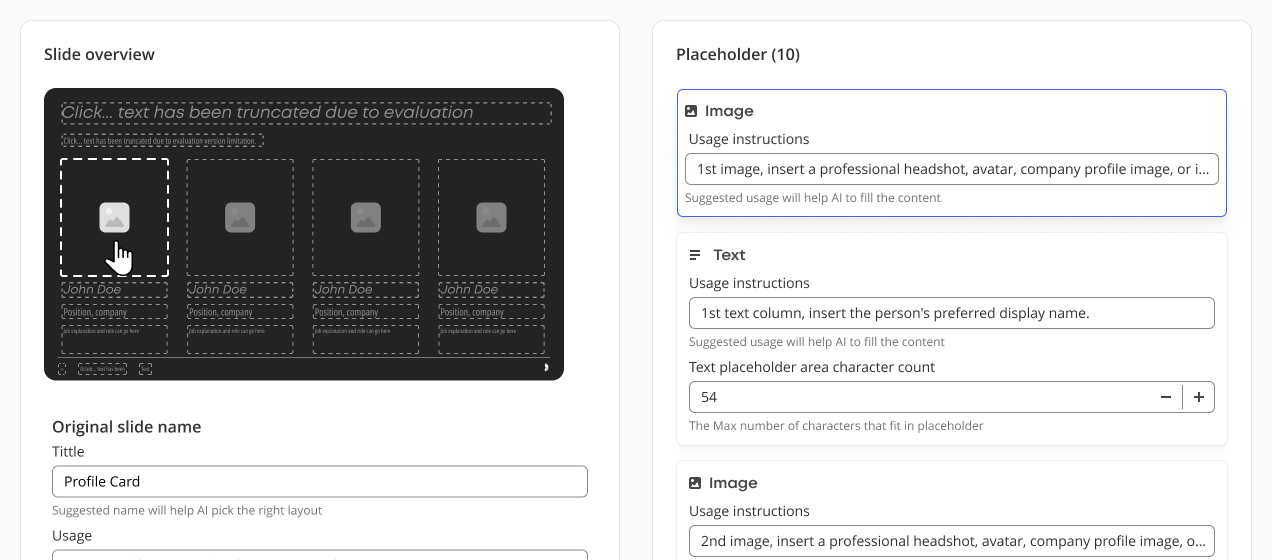
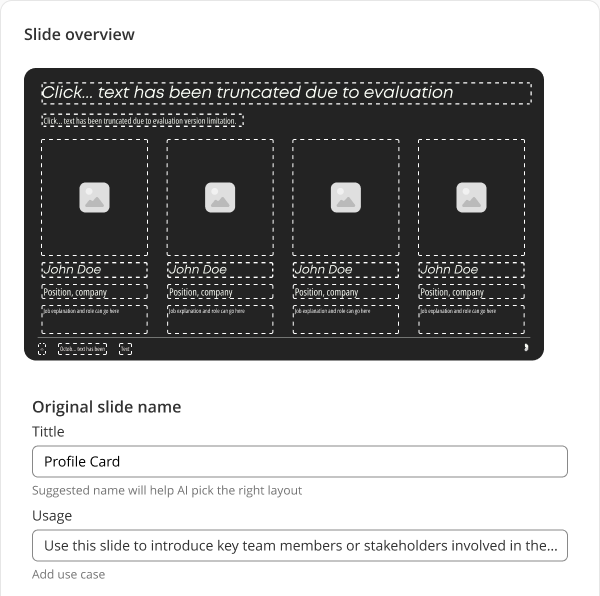
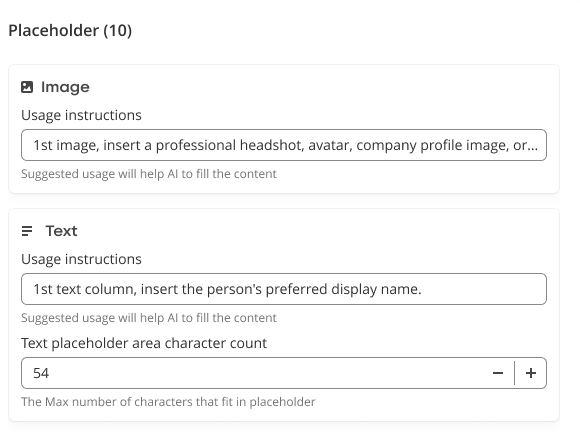
The model could only process text and image placeholders. I stripped the metadata back to what drives two things: how the agent picks the layout, and how it fills the content. A layout keeps a name and a usage. A placeholder keeps usage instructions and, for text, a character count.
The count is calculated, not guessed: font, font size, placeholder size and the average letter width for that font. The admin can step it up or down. It stops the agent handing a paragraph to a slot built for one line.
Iteration 2Layout details
Iteration 2Placeholder details
Three views for the layouts
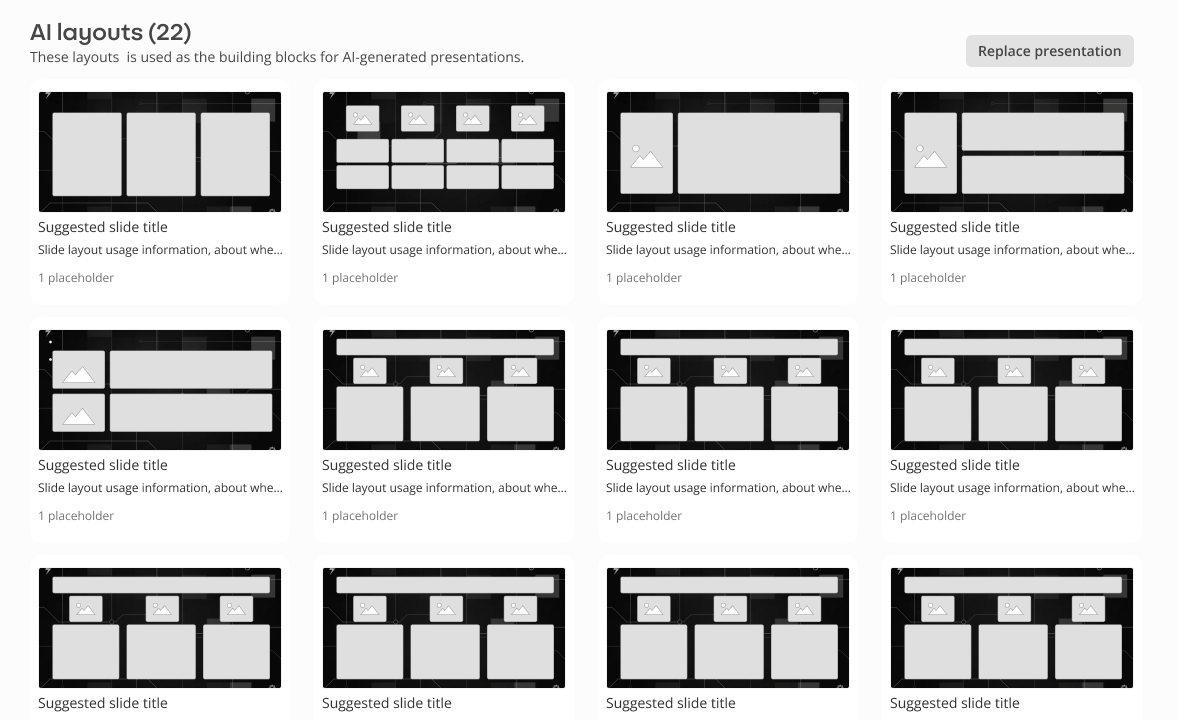
Cards
Large thumbnails. Shows fewer layouts at once and does not scale to bulk actions.
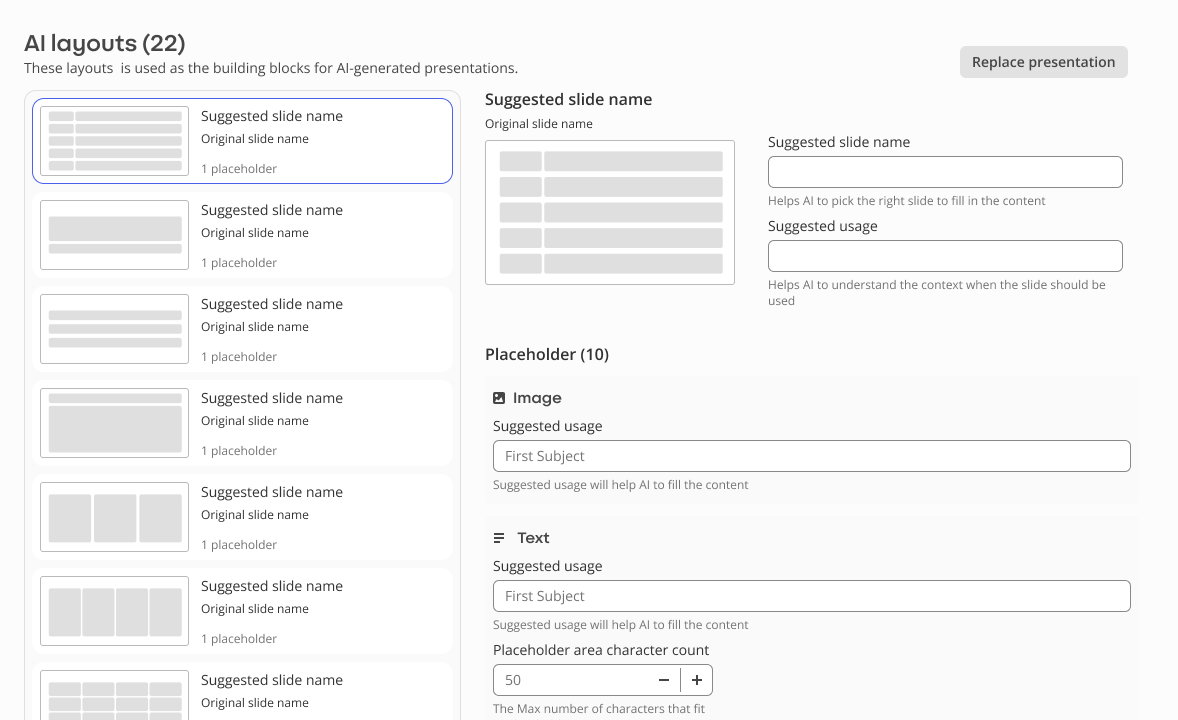
Split view
List and detail on one screen, fast to move between layouts. Smaller previews and tight space for placeholder detail.
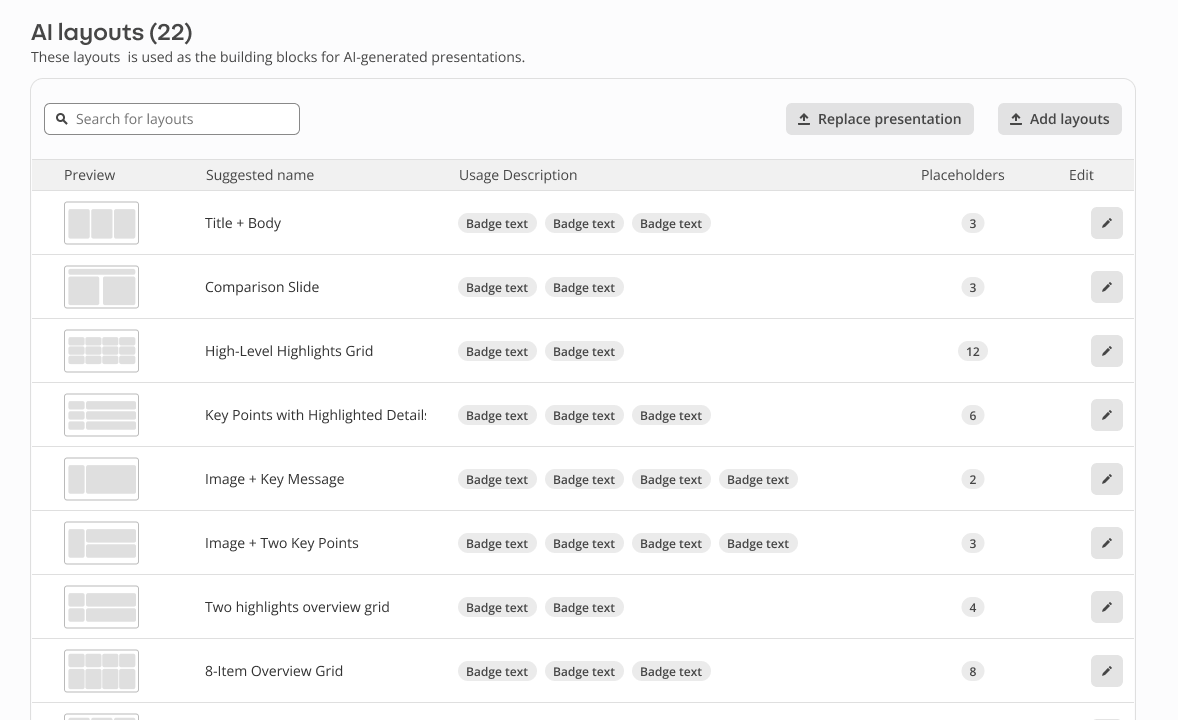
List view
Scales to many layouts, dense and scannable, works with bulk actions. Previews are small and editing opens a modal.
Delivery
One deck first, single slides next
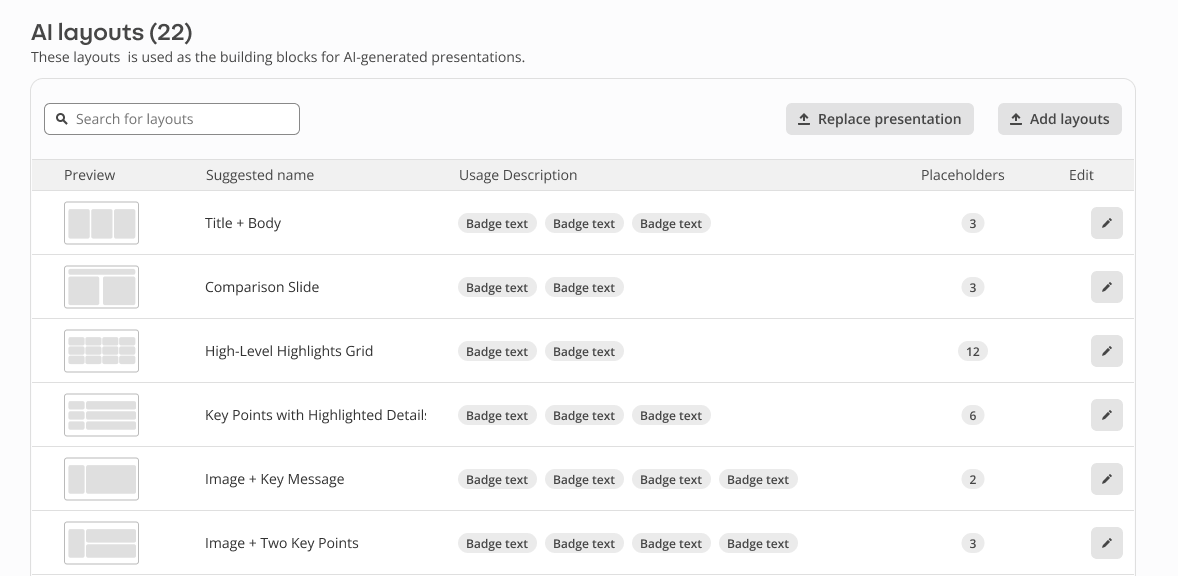
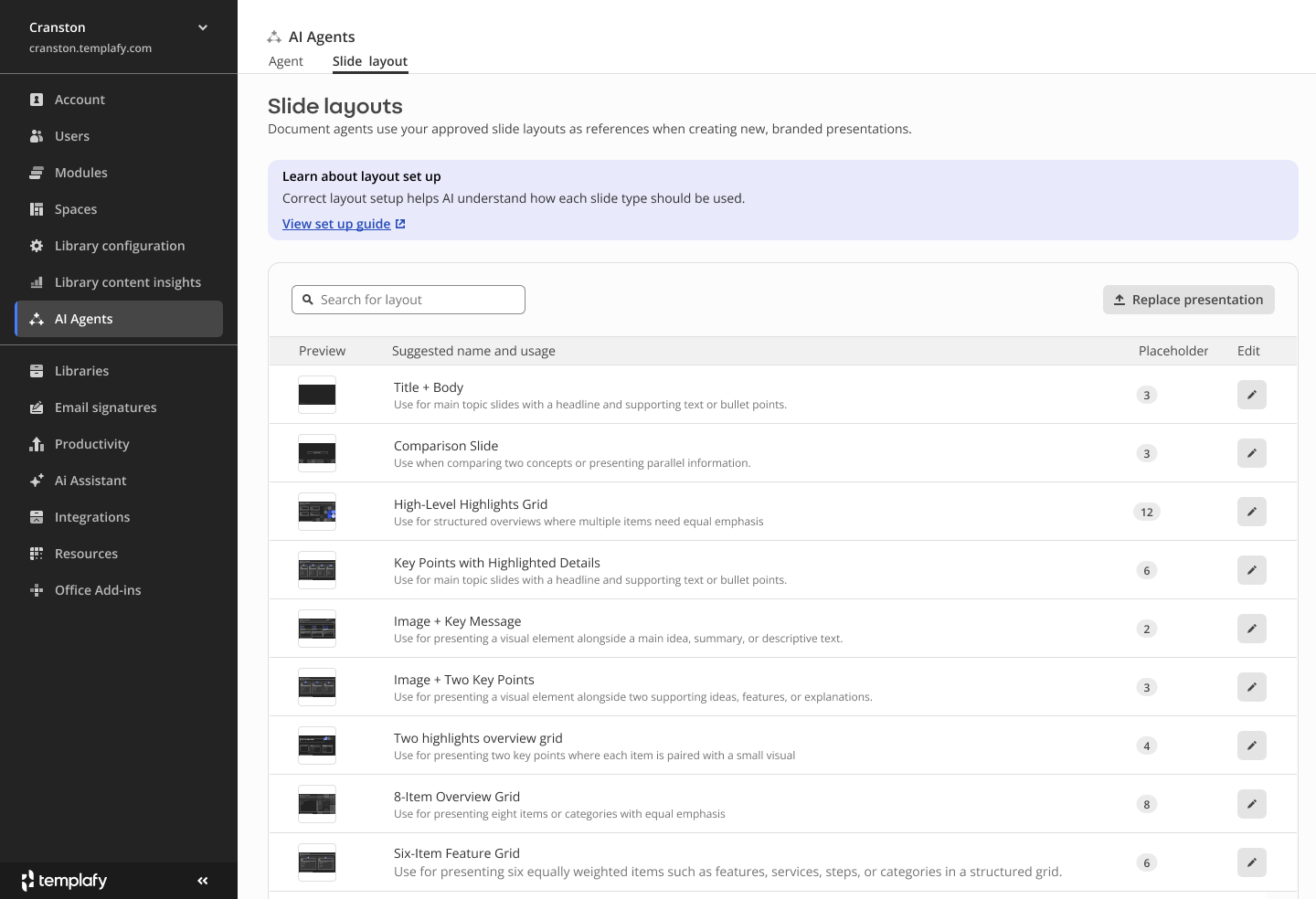
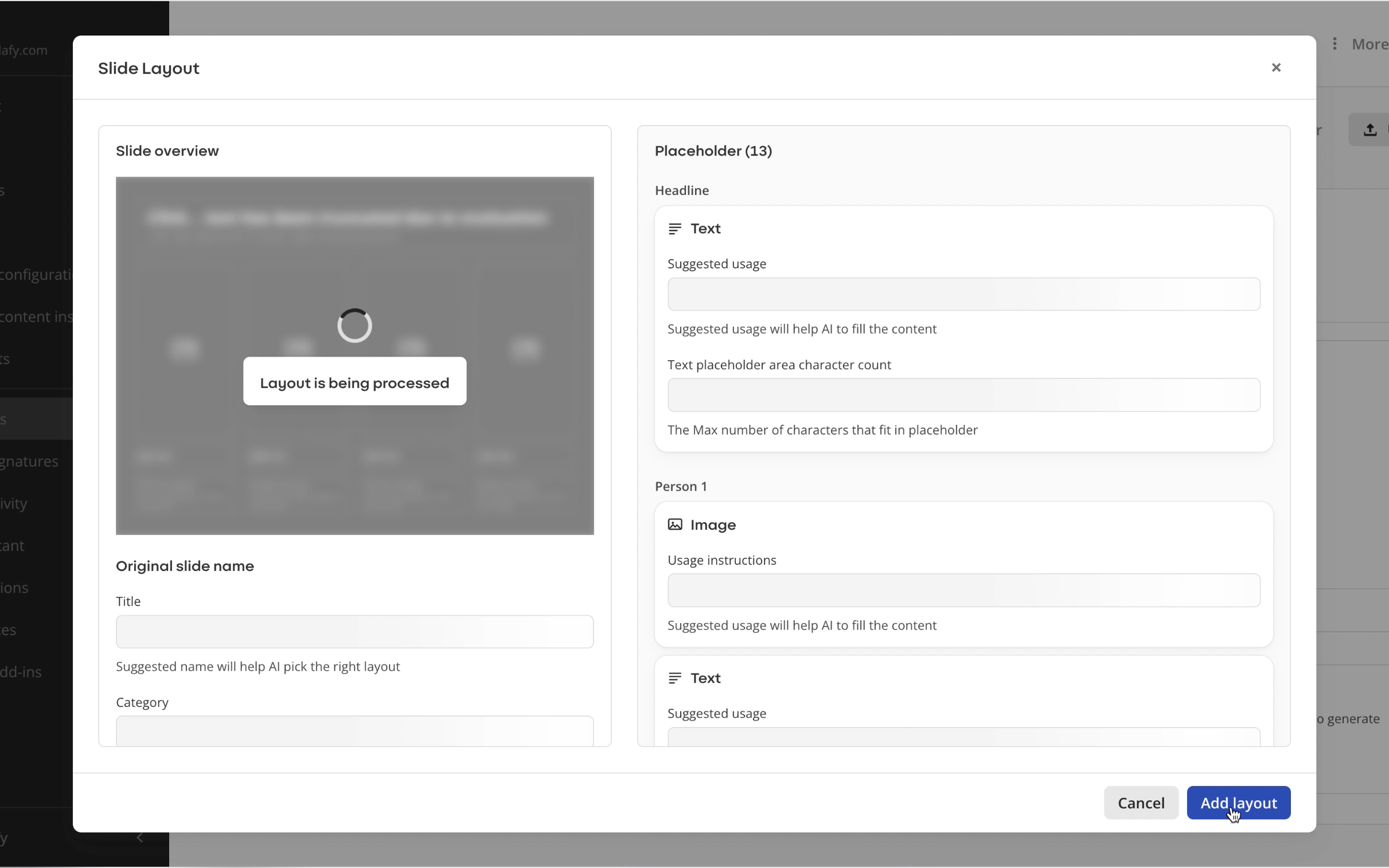
Phase one shipped with a single uploaded deck. The admin uploads one branded presentation, each slide is processed on its own, and the list fills with a preview, suggested name and usage, and placeholder count. Opening a layout shows the model's draft, which the admin overwrites placeholder by placeholder. Saved layouts join the set the agent builds from.
The list, written by the model
The modal, corrected by the admin
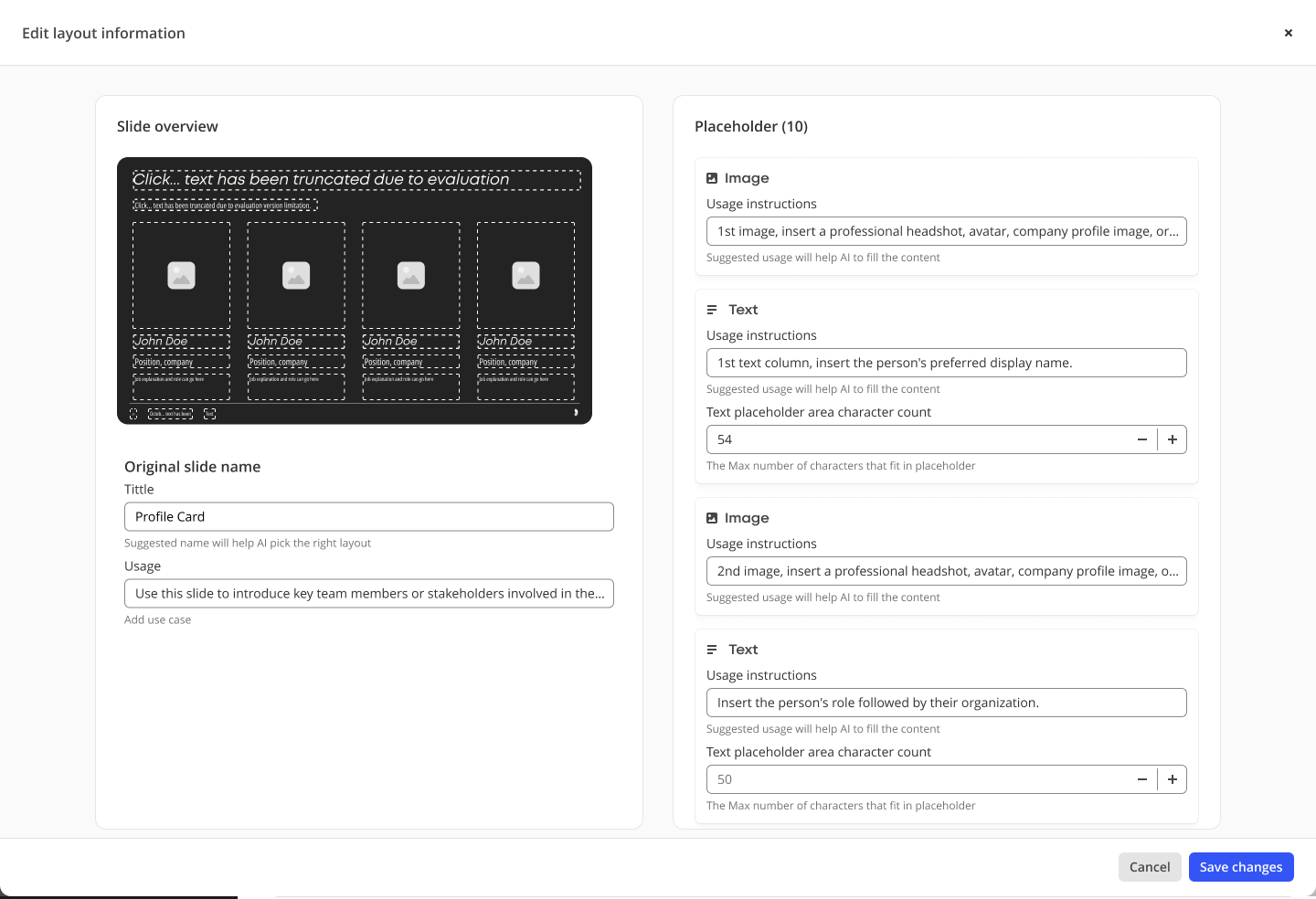
Placeholder navigation
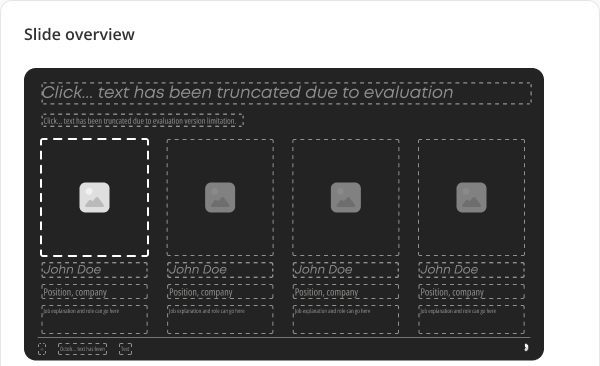
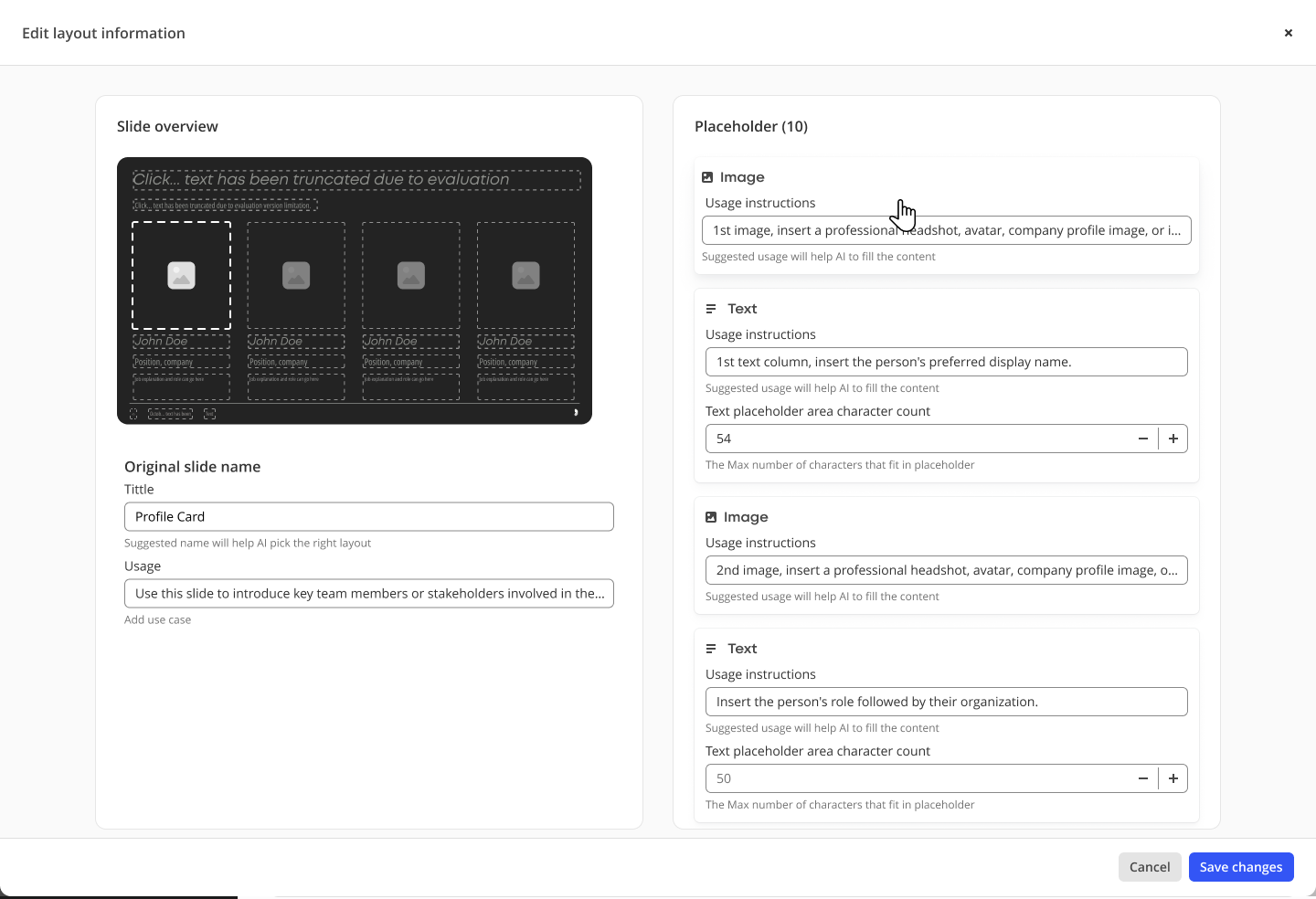
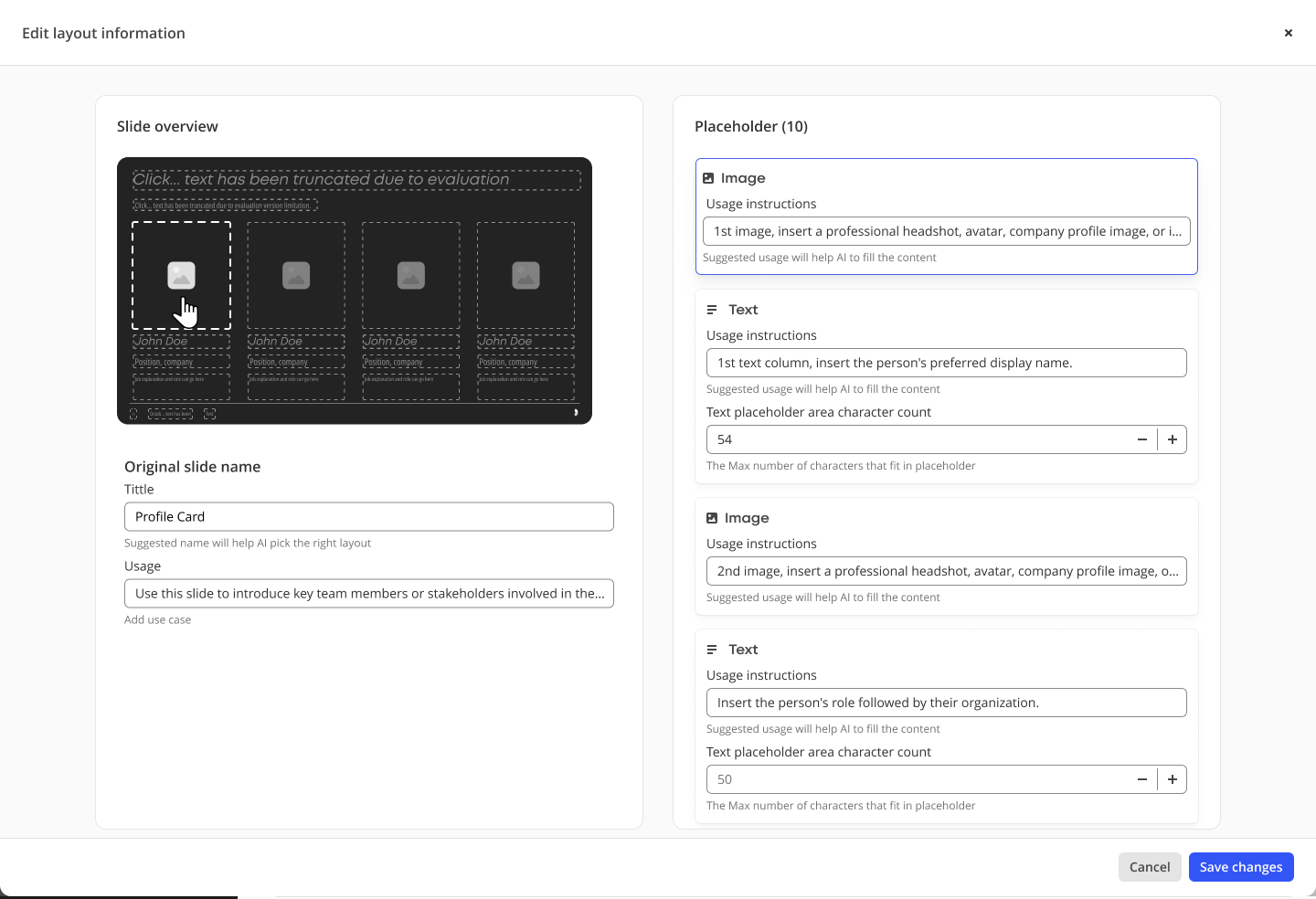
Select a placeholder in the list and its box lights up in the preview. Select a box in the preview and its fields light up in the list. Without it, admins cannot tell which instruction they are editing, and reviewing a layout or troubleshooting a bad result gets much harder. This was the one decision I would not compromise on.
From the list
From the preview
Phase two: library slides
A whole deck at a time was cumbersome. Phase two let admins add one slide or many from the library, each landing in the guide as its own layout and reviewed in the same modal. Admins can filter the library by layout usage and remove a layout without deleting the slide. Nothing blocks: the admin adds and carries on, and gets a notification when the layout is ready.
Library: add to AI layout
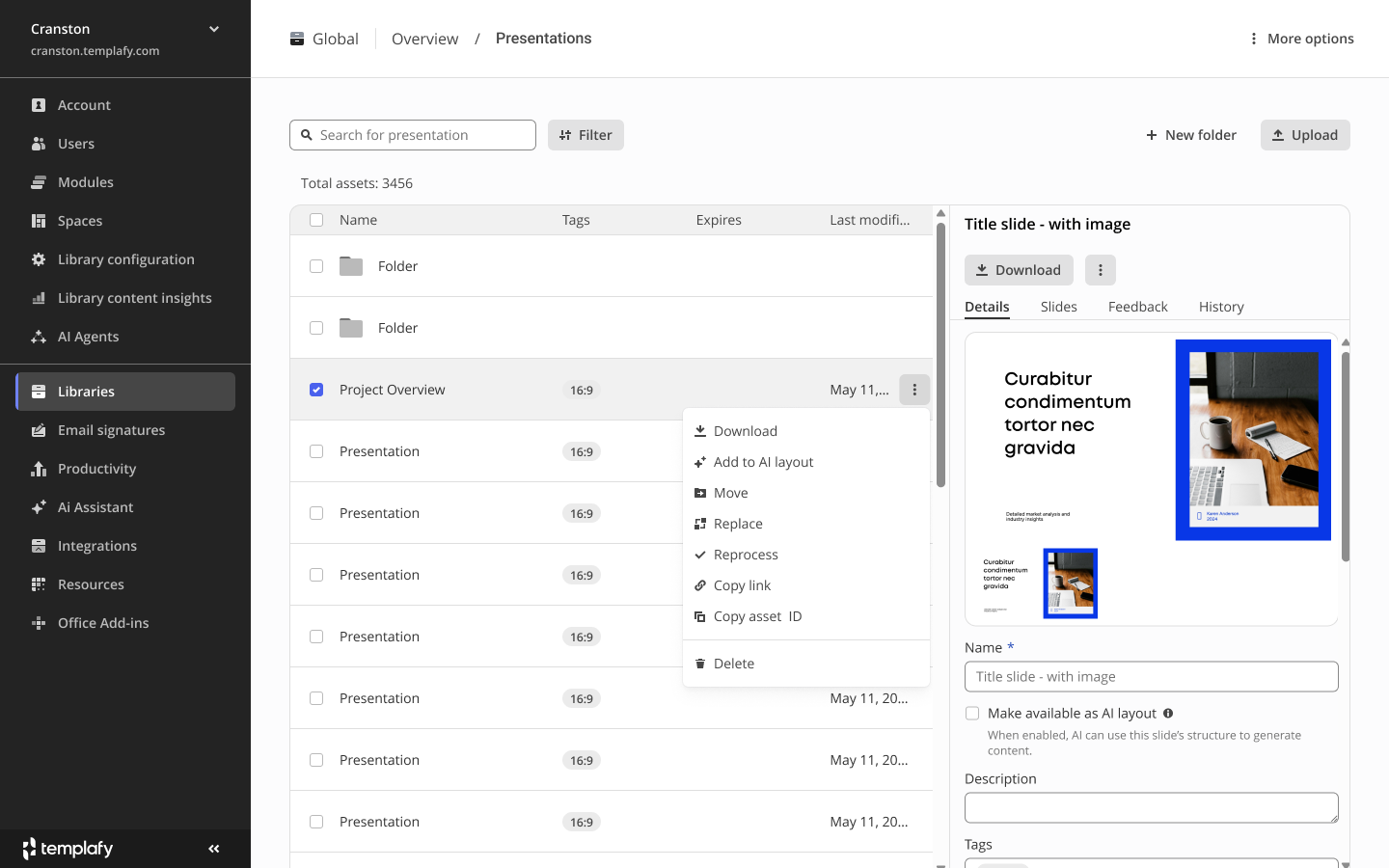
The same review modal
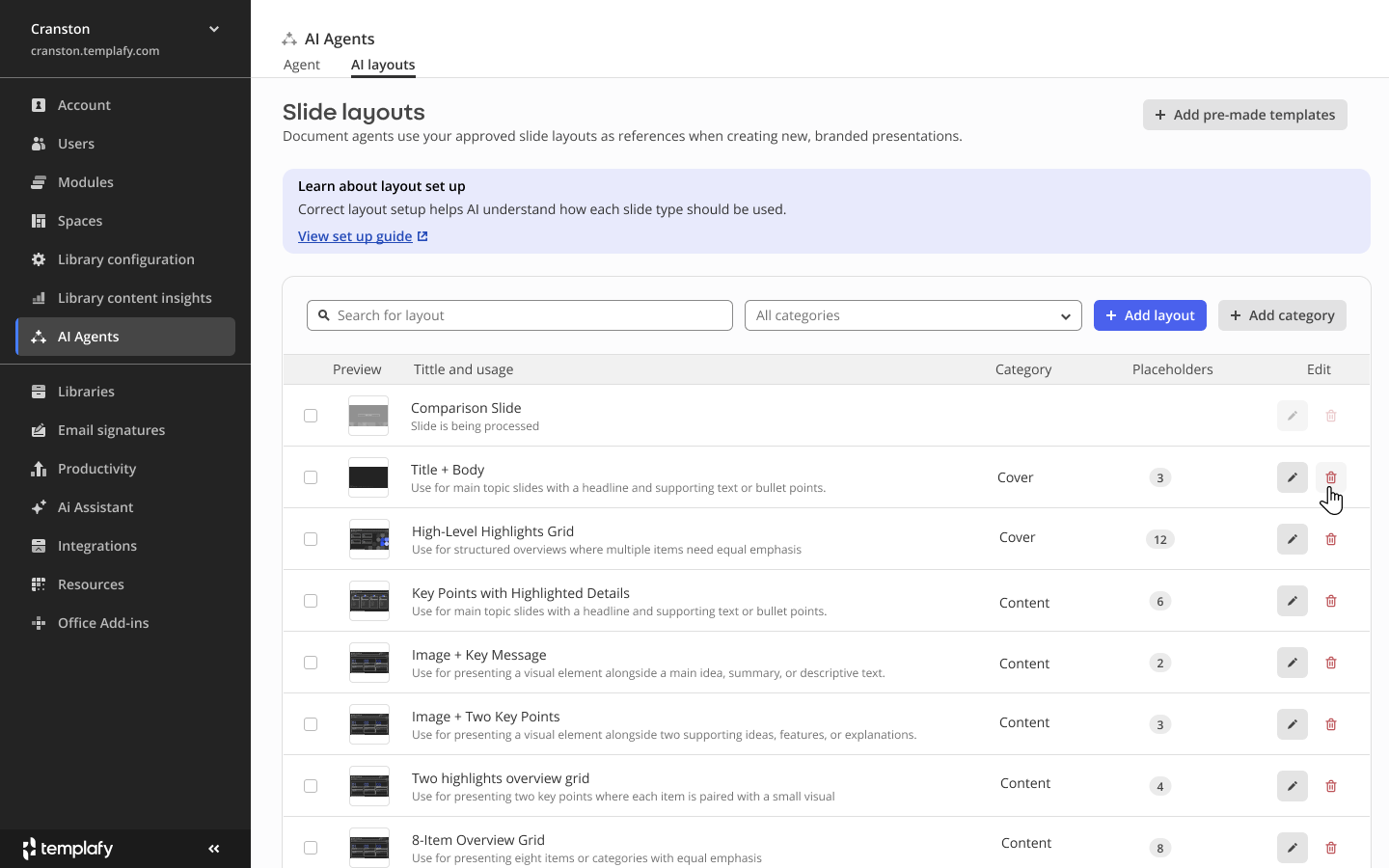
Managed one layout at a time: added, reviewed, removable.
Categories stayed out of scope. They meant more work for the model on every import. Through the whole run no admin missed them.
Outcome
Setup moved in-house
Weeks of back and forth
Layout setup went through an external partner. Long communication, weeks of review, and layouts out of date by the time they landed.
The brand team edits it
Setup sits with the team that owns the brand. They correct a layout the day it changes.
- Three enterprise brands onboarded in private preview.
- Phase two shipped, and the whole-deck upload was phased out.
- The set of layouts can grow, instead of the handful a master carried.
- With usage instructions to read, the agent stopped falling back on the same few layouts.
Learnings
What I would change
The project was commercially driven. Working closely with sales, with demos and deals in mind, put the setup inside the AI Agents menu point.
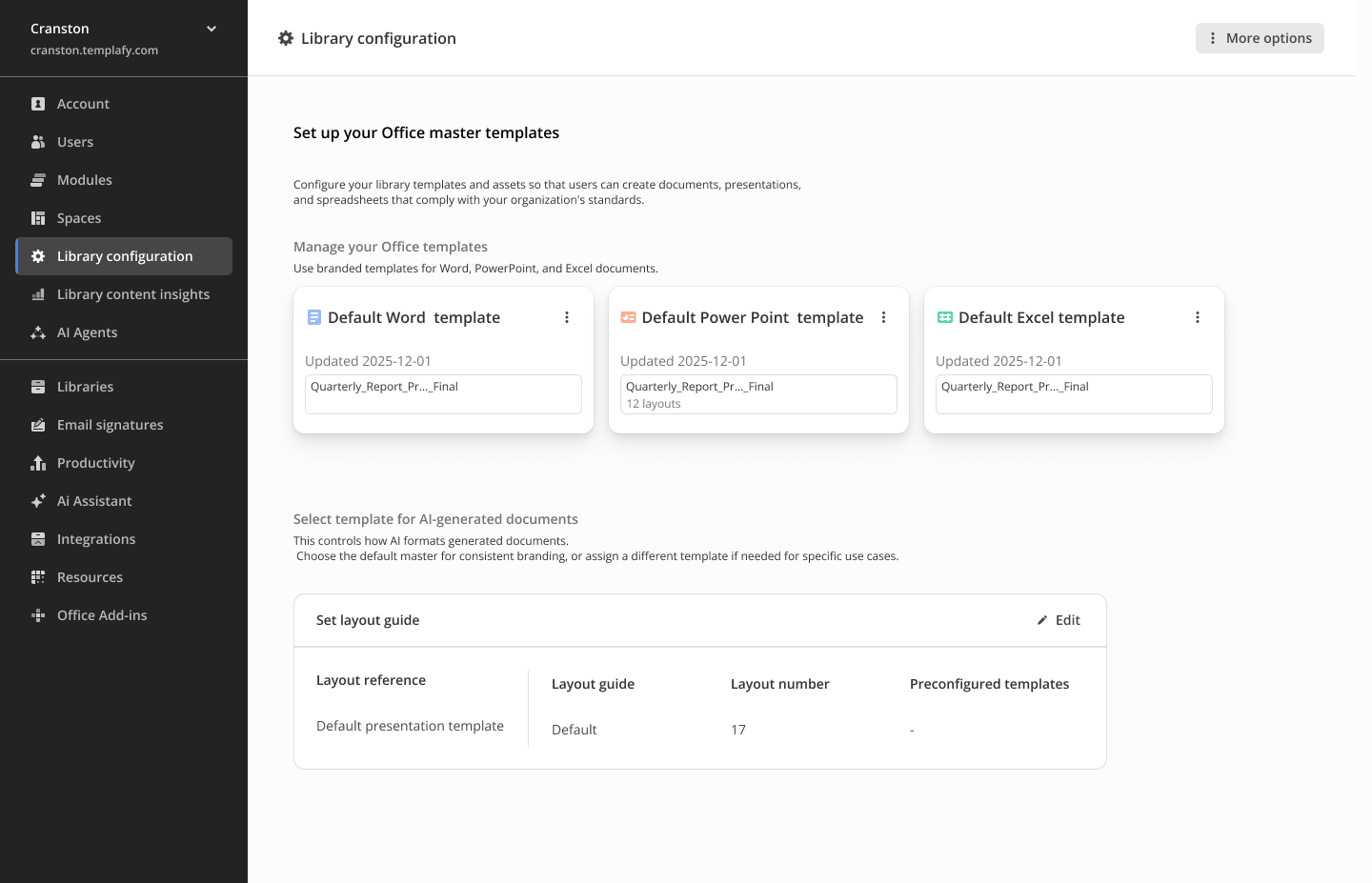
I would start from library configuration, as the first step of a brand management overhaul. Tone of voice, corporate terminology and colours sit under AI assistant and productivity tools today. They belong in one place: a single menu point for brand management.
Explored then: with the library
Updated: the layout guide with the templates
Tools
Building an AI feature while adopting AI tools.
Claude and Figma Make came in as the design work was centralised. Design systems were connected to the AI tools over MCP with Storybook. I created skills for the two personas, admin and end user, and a design critique skill that checks work against the design patterns.
Timeline
One quarter, start to ship.
Close collaboration with private-preview customers, progress shown as it was built, and experimentation alongside delivery, under steady pressure from the commercial organisation.
Cost of pace
Speed cut into research.
Design and development ran hand in hand. Testing with customer teams meant quick iterations, and a bias towards the companies we already worked with.
Models
When a model does the first pass, the interface makes it correctable.
The model saves the effort. The admin keeps the authority. The correction UI is the product, not a safety net.
Case study based on product design work at Templafy. Some product details have been described at a higher level for confidentiality, and private preview customers are not named.